
The Awarding a Supplier feature in oboloo allows you to finalize the sourcing process by selecting a winning supplier based on the evaluations and scores submitted.
This feature finalizes the sourcing process by selecting the winning supplier based on evaluations and submitted scores. This action officially marks the sourcing activity as Awarded, updates its status, and records the selected supplier’s details for future reference and reporting.
This guide will walk you through the steps to review supplier responses, select a winner, and complete the award process efficiently.
When to Use This Feature
When you have completed the evaluation of supplier responses and need to finalize the sourcing activity.
When a supplier has been selected based on scoring, price, compliance, or other evaluation criteria.
When you need to officially mark a sourcing activity as Awarded and update its status in the system.
When you want to record the winning supplier’s details for future reference and reporting.
When you require a clear audit trail of the awarding process for compliance and transparency.
Step-by-Step Guide
1. Accessing the Sourcing Activity
Navigate to the Main Menu and click on Sourcing.
Locate the sourcing activity you want to finalize using the search bar or filters.
Click on the sourcing activity to open its details page.
2. Reviewing Supplier Responses
Before awarding a supplier, ensure that all responses have been reviewed and evaluated:
Navigate to the Pricing, Questionnaires, and Supporting Documents tabs.
Use comparison tools to assess supplier performance based on submitted scores and response details.
Verify that the supplier meets all necessary criteria before proceeding.
3. Initiating the Award Process
On the Sourcing Activity Details page, locate the Award Supplier button on the left-hand side of the record.
Click the Award Supplier button to begin the awarding process.
4. Selecting the Supplier to Award
A pop-up window will appear.
Click the Select Supplier dropdown and choose the supplier you want to award.
Double-check the supplier’s details to ensure accuracy before proceeding.
5. Confirming the Award
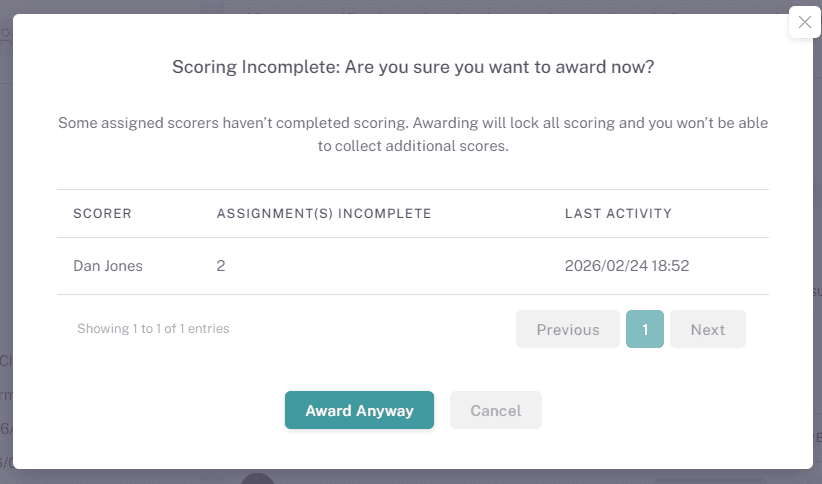
Click the Confirm Award button to finalize the award.
The sourcing activity’s status will automatically be updated to Awarded.
The awarded supplier’s details will be recorded in the system for future reference.
6. Creating a Contract Record
Click on the Create Contract button at the bottom of the sourcing summary card to automatically create a new contract record associated with the sourcing activity. This will map certain data from the sourcing activity into the new contract automatically.
7. Post-Award Actions
Once a supplier is awarded, several updates take place automatically:
The Sourcing Activity is moved to the Awarded status in the sourcing table.
The awarded supplier’s name is displayed at the top of the sourcing activity record.
There will be a link between the awarded sourcing activity, the supplier record and (if created from the sourcing activity, point 6 above) the linked contract.
Key Considerations & Best Practices
✅ Ensure Thorough Evaluation – Review all supplier responses before awarding to confirm the best selection.
✅ Use Comparison Tools – Evaluate pricing, questionnaires, and supporting documents for informed decision-making.
✅ Double-Check Supplier Details – Before confirming the award, verify the correct supplier is selected.
✅ Maintain Clear Records – Awarded supplier details are automatically stored for future reference and reporting.
✅ Download Reports for Auditing – Export sourcing event data as needed for procurement analysis.
Additional Resources
📌 Related User Guides:
Reviewing Supplier Responses – How to compare and evaluate supplier submissions before awarding.
Scoring Supplier Responses – Understanding how supplier evaluations impact the award process.
Cancelling a Sourcing Activity – How to cancel a sourcing activity and what happens after.
If you need further assistance, please contact your internal platform administrator for support. Otherwise please reach out to oboloo's support team. If you are unable to view the above area in the oboloo platform, please check your user permissions and access rights.