
Supplier AI allows users to instantly generate an intelligent summary of any supplier record, helping them quickly understand supplier status, identify risks, and prioritise actions requiring attention.
By analysing supplier information including onboarding status, compliance documents, performance scores, sustainability ratings, contracts, and supplier activity, Supplier AI creates an executive summary and highlights immediate actions that may require review.
This guide will walk you through how to generate a Supplier AI summary and interpret the results.
When to Use This Feature
✅ Before supplier review meetings.
✅ When onboarding new suppliers.
✅ When reviewing supplier compliance and risk.
✅ When preparing for contract renewals.
✅ When investigating supplier performance issues.
✅ When quickly understanding the overall status of a supplier relationship.
Step-by-Step Guide
1. Open a Supplier Record
Navigate to the supplier you wish to review.
Navigate to Supplier Management.
Open the required supplier record.
Review the supplier dashboard.
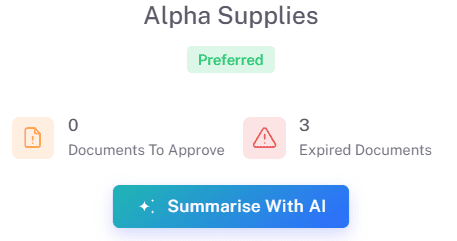
The supplier record displays key information including relationship status, compliance metrics, supplier performance, sustainability scores, documents requiring approval, expired documents, and other supplier information.
2. Generate an AI Summary
Supplier AI can be launched directly from the supplier dashboard.
Click the Summarise With AI button.
Wait for the analysis to complete.
The system will generate a comprehensive supplier summary.
Supplier AI reviews all available supplier information and presents the most important findings in a structured format.
3. Review Immediate Actions Required
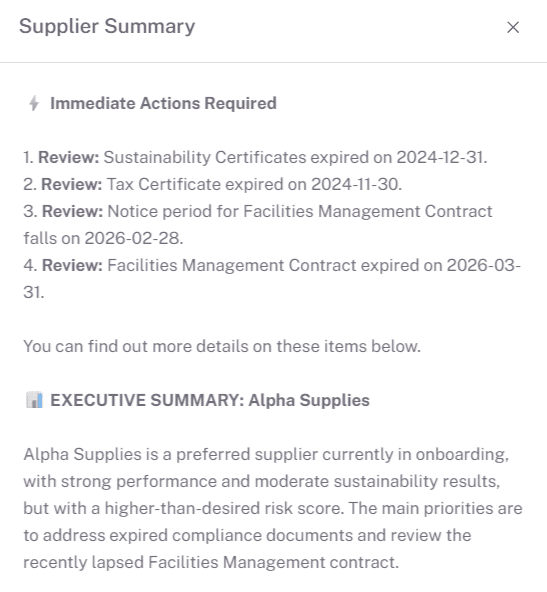
At the top of the summary, Supplier AI highlights urgent items that require attention.
Examples may include:
Expired supplier documents.
Documents approaching expiry.
Upcoming contract notice periods.
Outstanding onboarding activities.
Missing compliance information.
Performance concerns.
Sustainability or risk issues.
These actions are prioritised to help users focus on the most important supplier-related tasks first.
4. Review the Executive Summary
The Executive Summary provides a concise overview of the supplier relationship.
This may include:
Supplier status and relationship type.
Current onboarding progress.
Overall supplier performance.
Compliance position.
Key risks and opportunities.
Important upcoming activities.
The summary is designed to give users a complete supplier overview in seconds without manually reviewing multiple sections of the supplier record.
5. Review Relationship Metrics
Supplier AI provides a high-level view of key supplier indicators including:
Relationship Status.
Overall Risk Score.
Overall Performance Score.
Overall Sustainability Score.
Compliance Status.
Supplier Activity.
These metrics help users quickly assess the overall health of the supplier relationship and identify areas requiring further investigation.
6. Review Summary of Priorities
The Summary of Priorities section consolidates important actions and recommendations identified by Supplier AI.
Examples may include:
Review expired compliance documentation.
Monitor supplier performance.
Prepare for upcoming contract notice periods.
Complete onboarding activities.
Request updated supplier documentation.
Engage with suppliers regarding identified risks.
Users can then navigate directly to the relevant area within the supplier record to take action.
Key Considerations & Best Practices
Supplier AI summaries are generated using information stored within the supplier record.
Ensure supplier data is kept up to date for the most accurate results.
Review Immediate Actions Required regularly.
Use Supplier AI before supplier performance reviews and contract discussions.
Investigate all expired documents and compliance issues promptly.
Use the summary as a starting point for supplier governance activities.
AI-generated recommendations should support, not replace, business judgement.
Additional Resources
If you need further assistance, please contact your internal platform administrator for support. Otherwise please reach out to oboloo's support team. If you are unable to view the above area in the oboloo platform, please check your user permissions and access rights.