
This guide explains how to access and review supplier responses to a sourcing activity, ensuring an efficient evaluation process.
Reviewing supplier responses is a crucial step in making informed procurement decisions. The Supplier Response Dashboard allows you to view and compare supplier responses across supplier sections, supplier questionnaires, and pricing submissions—all from a single, centralized dashboard.
When to Use This Feature
When reviewing and evaluating supplier responses to a sourcing event.
When comparing supplier submissions, including pricing, questionnaires, and structured sections.
When identifying discrepancies or missing information in supplier responses.
When tracking changes in supplier submissions after reopening a sourcing event.
When exporting supplier response data for further analysis or reporting.
Step-by-Step Guide
1. Navigate to the Sourcing Activity
Click Sourcing in the main menu.
Select the sourcing activity you want to review.
Open the Sourcing Activity Dashboard, where all supplier responses are categorized into different tabs.
2. Review Supplier Section Responses
Navigate to the Supplier Sections tab.
This tab contains structured supplier-provided details such as:
Company background
Service capabilities
Sustainability commitments
Use the Select Supplier dropdown to filter responses by a specific supplier.
If the sourcing event was reopened, timestamped versions of the latest submissions will be available.
Selecting a response will display the relevant details in a table format.
3. Review Supplier Questionnaire Responses
Open the Questionnaires tab to view supplier answers to structured, pre-set questions.
Supplier responses are grouped by questionnaire name and questionnaire area.
Use the Select Supplier filter to view responses from a specific supplier.
If the event was reopened, timestamped submissions will help track any changes made by suppliers.
4. Review Supplier Pricing Submissions
Navigate to the Financials tab for a side-by-side comparison of supplier pricing.
This section helps analyze total cost, individual product/service pricing, and additional fees.
The Financials tab consists of:
Financial Summary Table – Displays total pricing submissions from each supplier.
Product Analysis Table – Compares individual product/service costs between suppliers.
Supplier Analysis Table – Breaks down costs per supplier, including additional charges (e.g., shipping fees, taxes).
Use filters to focus on a particular supplier or product.
Click the Export button to download pricing reports.
5. Take Action on Supplier Responses
Once you’ve reviewed all sections, you can:
Evaluate supplier offerings.
Assess overall value.
Identify areas requiring further clarification.
If needed, reopen the sourcing event for selected suppliers and request updates to their responses.
Email Invite Status
The Email Invite Status feature provides visibility into whether supplier invitation emails have been successfully delivered, helping you quickly identify and resolve any delivery issues.
Where to Find This:
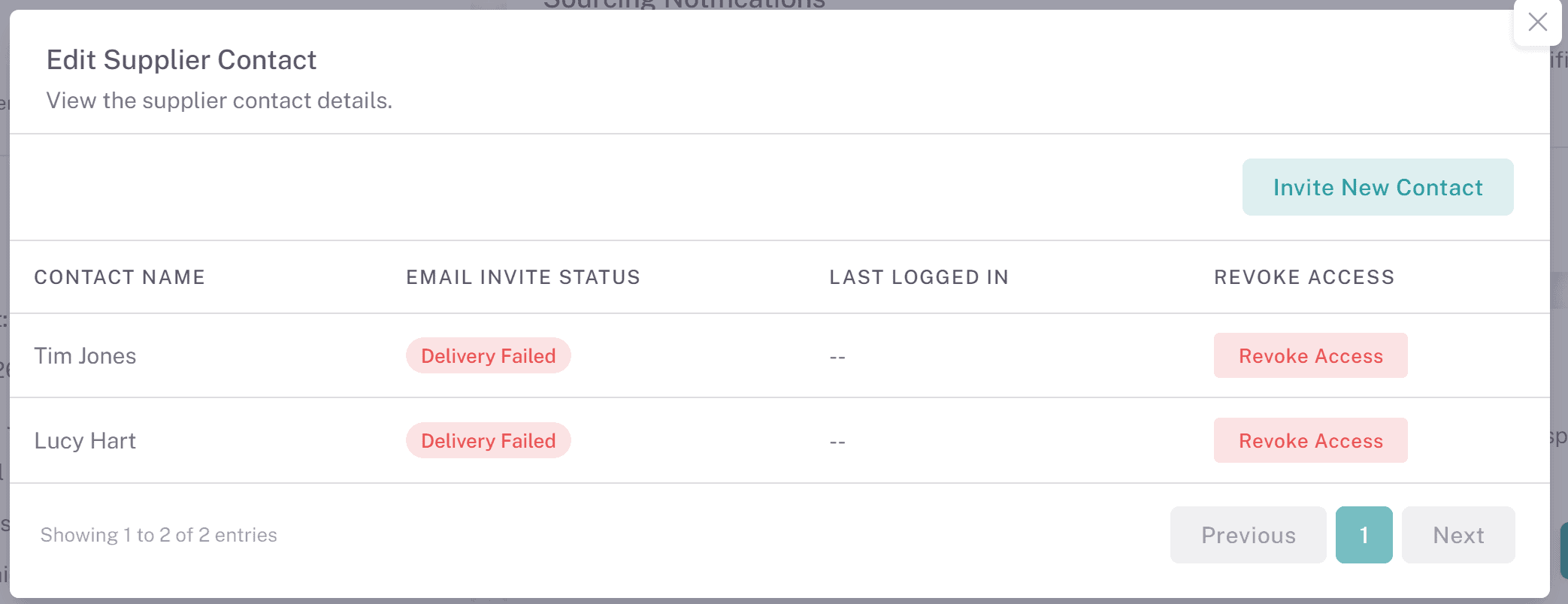
Navigate to a sourcing activity and locate the Invited Suppliers table. Click View/Edit on a supplier to open the Edit Supplier Contact modal.
Within this table, the Email Invite Status column appears directly after the Contact Name column.How It Works:
A column called Email Invite Status displays a status indicator for each supplier contact.
The status is shown as a coloured button:
Delivered (Green): The invitation email was successfully delivered.
Delivery Failed (Red): The invitation email failed to send or was rejected.
These buttons are display-only and cannot be clicked.
Why This Matters:
This feature improves transparency and reduces guesswork by clearly showing whether an invite email reached the supplier, allowing you to take action where needed and keep sourcing activities on track. If a supplier contact is showing as 'Delivery Failed', please check their email address and readd them to the sourcing activity.
Inviting Suppliers and Contacts After Publishing Your Sourcing Event
This feature allows you to add new suppliers or update supplier contacts after a sourcing activity has already been published, ensuring you can make changes without recreating the activity.
Where to Find This:
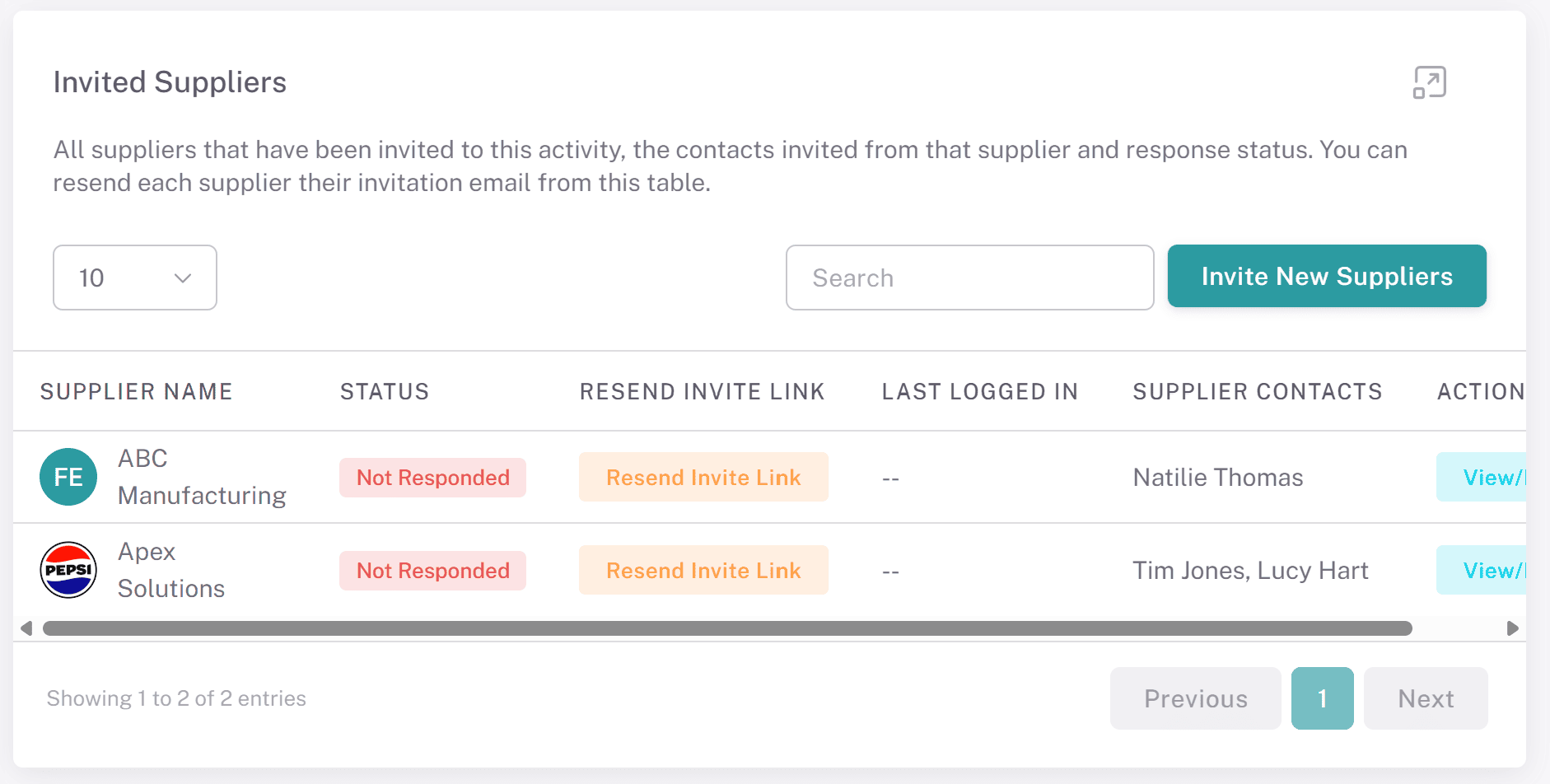
Navigate to Sourcing, open a sourcing activity, and remain on the first tab.
All actions are managed from the Invited Suppliers table.
Inviting Additional Suppliers:
Click Invite New Suppliers above the Invited Suppliers table.
Select the suppliers and their contacts, then confirm.
Once added:
The suppliers appear in the Invited Suppliers table.
Selected contacts receive invitation emails.
Suppliers can access and respond to the sourcing activity as normal.
Managing Supplier Contacts:
In the Invited Suppliers table, click View/Edit within the Supplier Contacts column.
A modal will open displaying all invited contacts for that supplier.
The table includes:
Contact Name
Last Logged In (date/time of last access to the sourcing activity)
Revoke Access
Revoking Contact Access:
Click Revoke next to a contact to remove their access.
Confirm the action when prompted.
Once confirmed:
Access is removed immediately.
The contact is removed from the list.
The contact can be invited again later if required.
Important Restriction:
Each supplier must have at least one active contact.
If you attempt to revoke the last remaining contact, the system will prevent this action.
Inviting Additional Contacts:
Within the View/Edit modal, click Invite New Contact.
Select a contact and confirm.
The contact will:
Be added to the list immediately.
Receive an invitation email.
Why This Matters:
This functionality gives you full control over supplier participation, allowing you to correct mistakes, add missed suppliers, and manage access efficiently without disrupting your sourcing activity.
Key Considerations & Best Practices
✅ Compare Responses Across Different Categories – Use the Supplier Response Dashboard to analyze supplier sections, questionnaires, and pricing submissions side by side.
✅ Track Supplier Submissions – Timestamps allow you to track changes when a sourcing event is reopened.
✅ Use Filters for Targeted Analysis – Apply supplier and product filters to focus on specific submissions.
✅ Ensure Data Accuracy – Review supplier responses carefully and flag any discrepancies before finalizing evaluations.
✅ Export Data for Further Review – Download supplier response reports for internal discussions or procurement audits.
✅ Request Additional Information – If required details are missing, reach out to suppliers for clarification before making a decision.
Additional Resources
📌 Related User Guides:
Creating a Sourcing Event – How to invite suppliers and structure an event.
Scoring Supplier Responses – How to evaluate and assign scores to supplier submissions.
Shortlisting & Awarding Suppliers – Final steps in selecting and contracting a supplier.
If you need further assistance, please contact your internal platform administrator for support. Otherwise please reach out to oboloo's support team. If you are unable to view the above area in the oboloo platform, please check your user permissions and access rights.