
The Supplier Compliance Reporting page is a powerful reporting tool that allows users to create customised reports and gain comprehensive insights into their suppliers.
This guide explains how to navigate the Supplier Compliance page, modify the table view, and export tailored reports for effective supplier management.
📌 Tips:
When to Use This Feature
✅ When monitoring supplier compliance, risk, and performance.
✅ When comparing suppliers using scorecard ratings and document statuses.
✅ When creating customised reports for internal analysis or stakeholder collaboration.
✅ When exporting data for external reporting or audit purposes.
✅ When exporting data for external reporting or audit purposes.
Step-by-Step Guide
Step 1: Open the Supplier Compliance Page
Click on Supplier Management in the left-hand menu.
Click on Supplier Compliance.
📌 The default view will display a list of all suppliers along with:
Contract Status (whether they have active contracts).
Number of Documents (expired or pending approval).
Latest Performance, Risk, and Sustainability Scores.
Step 2: Filtering Supplier Data
Use the filters at the top of the table to filter specific groups of suppliers.
Example: View only suppliers with expired documents or high-risk scores.
Step 3: Customising the Table View
The Supplier Compliance page allows users to modify the table based on specific reporting needs:
Using the Blue Category Buttons to Customise Columns
Click on the General Column Button to add/remove general supplier information:
Performance, Risk, and Sustainability Scores.
Documentation statuses (e.g., Expired, Pending Approval).
Click on the Scorecard Column Button to display supplier scorecard data:
Select specific scorecards to insert their scores into the table.
Add multiple scorecards to the table for comparison.
Click on the Documents Column Button to insert document statuses:
View which suppliers have specific documents uploaded, approved, or expired.
Add multiple document types for a comprehensive compliance check.
Step 4: Viewing Scorecards and Document Data
Scorecard Data
When a scorecard is added, it will appear at the end of the table.
If a supplier has a percentage score, it means they were previously assessed using that scorecard.
The score shown is the latest recorded evaluation.
Document Data
When a document type is added, it will also appear at the end of the table.
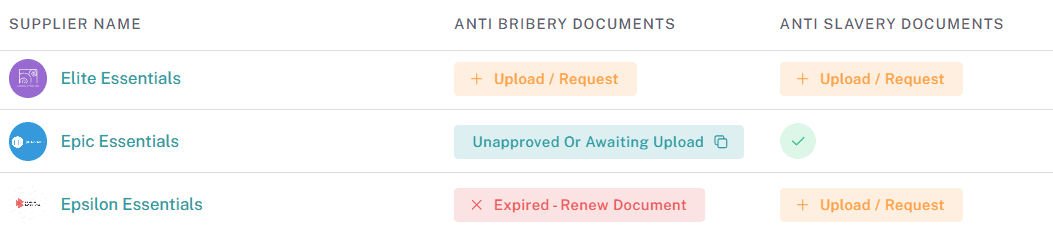
A tick mark next to a document type means:
The document is uploaded to the supplier profile.
The document is approved.
The document is valid (not expired).
Expired documents are clearly labelled and can be renewed by being uploaded / requested again
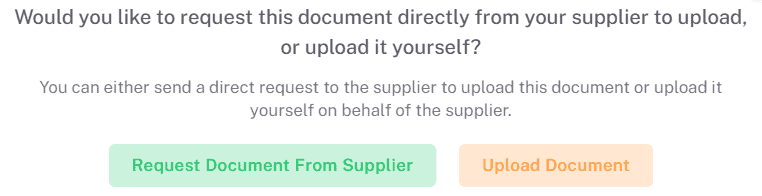
Upload / Request directly from the supplier any missing documents
Documents already uploaded and Unapproved or Awaiting Supplier Upload are clearly flagged
Step 5: Exporting Customised Reports
Once the table is customised, click on the Export button to download the report.
Choose the format:
CSV – For spreadsheet analysis and bulk data processing.
Excel – For easier report formatting and sharing.
Key Considerations & Best Practices
✅ Use Filters for Focused Reports – Narrow down supplier data for specific compliance checks.
✅ Compare Supplier Performance – Add scorecards to track performance trends.
✅ Monitor Document Expiry – Check for expired supplier documents and follow up accordingly.
✅ Customize Reports for Stakeholders – Select relevant columns before exporting reports.
✅ Regularly Update Supplier Records – Ensure the latest data is displayed for accurate reporting.
Additional Resources
📌 Related User Guides:
Managing Supplier Documents – How to upload and approve supplier compliance documents.
Evaluating Suppliers with Internal Scorecards – How to assess supplier performance using internal scorecards.
Evaluating Suppliers with Self-Assessment Scorecards – How to assess supplier performance using internal scorecards.
If you need further assistance, please contact your internal platform administrator for support. Otherwise please reach out to oboloo's support team. If you are unable to view the above area in the oboloo platform, please check your user permissions and access rights.