
The Primary User holds a unique administrative role within an organisation’s account.
They are responsible for subscription management, billing, and high-level configurations. The Primary User is assigned during the initial onboarding process and serves as the main point of contact between the organisation and the system provider.
This guide outlines the responsibilities of the Primary User, how their role impacts the platform, and the process for managing or updating the Primary User if needed.
When to Use This Feature
When managing subscription and billing details.
When identifying the Primary User in the system.
When updating the Primary User’s role within the organisation.
When troubleshooting restricted actions attempted by non-primary users.
Role and Responsibilities of the Primary User
The Primary User has exclusive permissions and responsibilities that extend beyond standard users. These include:
Subscription Management
The Primary User is the only individual who can upgrade or renew the organisation’s subscription.
They have exclusive access to the Manage Subscription & Billing section under Account Management, where they can:
Update payment methods.
Adjust licence counts.
View and download invoices.
Billing Authority
Only the Primary User can modify billing options or subscription details.
They act as the financial point of contact for the organisation.
The Primary User receives automated notifications about billing events such as subscription renewals and payment updates.
Adding Licences
The Primary User can purchase additional licences for new users within the organisation.
Account Security & Ownership
The Primary User ensures the integrity of the organisation’s account and serves as the main administrator for major account decisions.
User Management Oversight
While other users may have user management permissions, the Primary User is ultimately responsible for monitoring licence usage and billing.
How to Identify the Primary User
The Primary User is clearly marked within the User Management section.
Step 1: Navigate to the User Table
Click on Settings from the left-hand menu.
Click on Users to access the User Management section.
Step 2: Locate the Primary User
In the User Table, find the column labeled Primary User.
A tick icon will be displayed next to the assigned Primary User.
📌 Tip: Hover over the tick icon to see a tooltip explaining the Primary User’s responsibilities, including subscription, billing, and licence management.
What Happens When Non-Primary Users Attempt Restricted Actions?
If a non-primary user tries to perform an action that is restricted to the Primary User, the system will display a notification message guiding them to contact the Primary User.
Upgrade Attempt
📌 If a non-primary user tries to upgrade the account, a modal appears with the message:
"Thanks for choosing to upgrade. Only your organisation's Primary User ([Primary User’s Email Address]) can upgrade your account. Please reach out to them to complete this process. If you need to change your Primary User, please contact our support team at oboloo.com/contact-us
Manage Subscription Attempt
📌 If a non-primary user attempts to access the Manage Subscription & Billing section, an advisory note below the button will state:
"Please note, only the Primary User ([Primary User’s Email Address]) can amend your organisation’s billing options."
How to Change the Primary User
The Primary User is the main billing and subscription administrator for your oboloo account. This user has access to billing functionality, including invoices, payment methods, subscription management, and the Stripe Customer Portal.
Changing the Primary User helps ensure the correct person within your organization manages billing access and account ownership responsibilities.
Step 1: Navigate to Settings > Users
Open the Settings menu from the left-hand navigation.
Click into the Users page to view all users within your organization.
Step 2: Open the User Record
Select the user you would like to assign as the new Primary User.
This will open the user’s profile record page.
Step 3: Enable the Primary User Option
At the bottom of the user record page, tick the option:
“Make this user your organization’s Primary User?”
If the selected user is already the Primary User, this option will already be ticked and disabled.
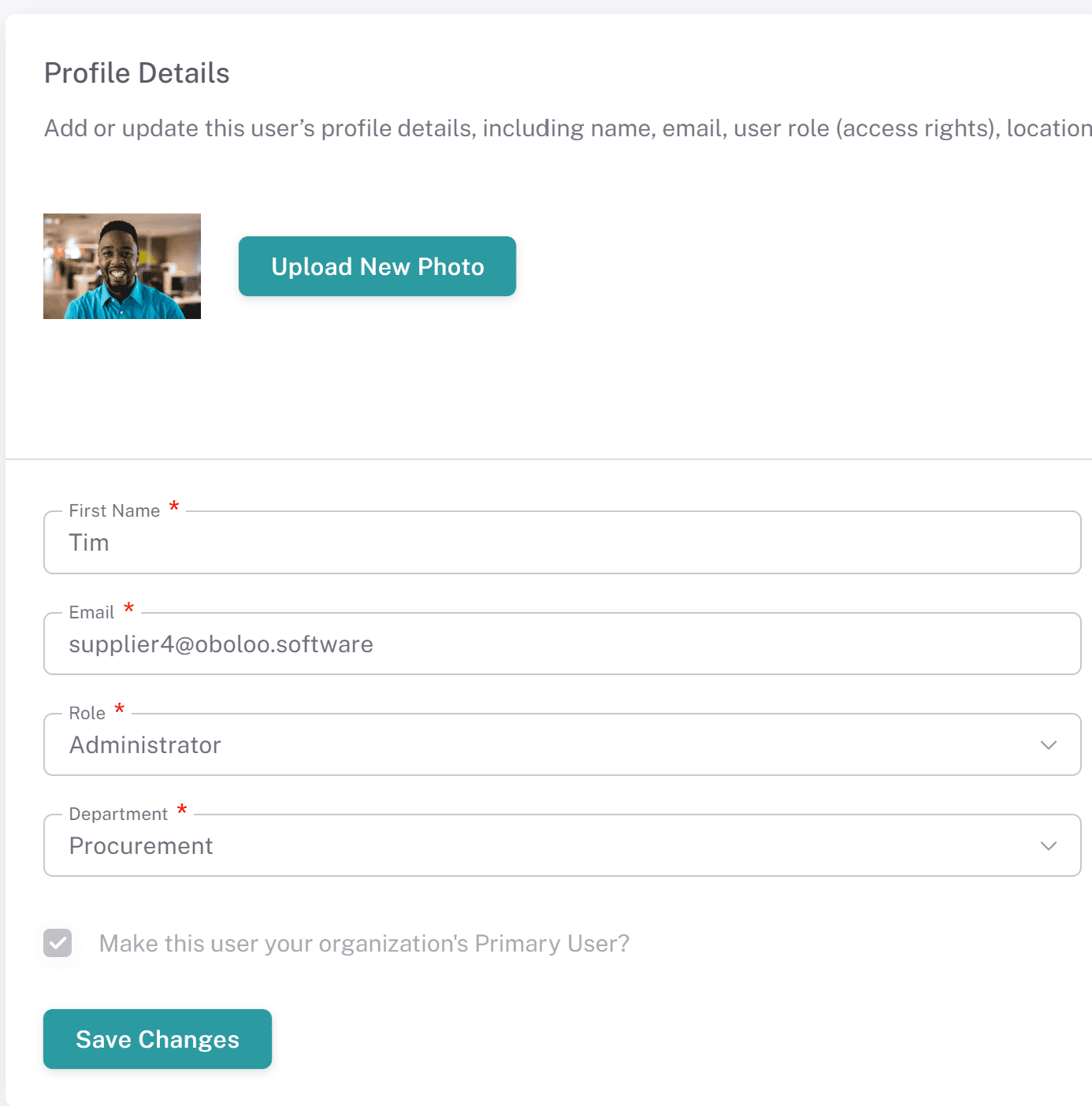
Step 4: Confirm the Change
After selecting the checkbox, a confirmation popup will appear explaining the impact of the change.
Click “Confirm” to proceed.
Once confirmed:
The selected user becomes the new Primary User
The previous Primary User is automatically removed
Billing access and subscription controls transfer immediately
The Primary User indicator updates across the Users table
Key Considerations & Best Practices
✅ Ensure the correct Primary User is assigned – The Primary User manages billing, subscription, and licences, so this role should be assigned to someone with financial or administrative authority.
✅ Keep the Primary User updated – If a Primary User leaves the company, update their role immediately to prevent disruptions in account management.
✅ Verify permissions before requesting a change – Only the Primary User or an authorised representative can request a change.
✅ Monitor restricted action attempts – If users encounter access issues, confirm whether their action is restricted to the Primary User.
✅ Use the hover tooltips for clarification – The tick icon in the User Table quickly identifies the Primary User.
Additional Resources
📌 Related User Guides:
Managing User Permissions – Guide on assigning and updating user roles.
Assigning & Revoking Licenses – How to assign licenses to users.
Increasing or Decreasing License Numbers - How to change the number of oboloo licenses purchased
📌 Need Further Help?
For Primary User updates or billing-related inquiries, contact Support at oboloo.com/contact-us