
Tables in the platform provide structured data views for suppliers, contracts, sourcing events, savings, and more. To help users efficiently manage and analyze data, the platform allows for sorting, filtering, and exporting tables based on specific needs.
Tables in oboloo are highly versatile and user-friendly, designed to help you manage, analyse, and extract data efficiently. Whether you’re exporting information for reporting, sorting columns for better clarity, or applying filters to find specific records, oboloo’s tables ensure that you can work with data in a way that suits your needs. Below is a detailed guide on exporting, sorting, and filtering tables.
When to Use This Feature
If you need to organize data to quickly find relevant records.
If you want to filter records based on specific criteria.
If you need to export data for external reporting, analysis, or record-keeping.
Step-by-Step Guide
Exporting Data From Tables
Exporting data from tables in oboloo allows you to seamlessly transfer key information into other tools for further analysis or reporting.
How to Export Data:
Simply click the Export button located above the table. A CSV file will automatically download to your device, which can be opened in tools like Microsoft Excel, Google Sheets, or any other spreadsheet software.Access Rights:
Only users with export permissions can download data. Permissions can be managed under the User Roles section in the Settings page.Benefits of Exporting:
Exported data provides flexibility for deeper analysis, sharing reports, or integrating with external systems, ensuring you can get the most out of your oboloo data.
Sorting Tables
Sorting functionality allows you to organise data within tables to quickly find the information you need.
How to Sort:
Hover over the column you want to sort and click the arrow that appears. This will rearrange the data in ascending or descending order based on the selected column.Examples of Use:
Sort suppliers by compliance score to identify high-performing suppliers.
Arrange sourcing activities by closing dates to prioritise deadlines.
Order contracts by value to highlight key agreements.
Why Sorting Matters:
Sorting ensures that large datasets are easier to navigate and allows you to focus on the most critical information quickly.
Filtering Tables
Filters are an essential tool for narrowing down data to meet specific criteria. This feature is especially useful for identifying trends, comparing subsets of information, or managing compliance data.
How to Filter:
Use the filter dropdowns located above the table. Select the desired criteria, and the table will automatically update to display only the relevant rows.Clearing Filters:
To remove all applied filters, click the Clear Filter button, located next to the filter dropdowns. This will restore the table to its default view.Real-World Scenarios for Filtering:
Filter contracts by status (e.g., Active, Expired) to focus on renewal planning.
View sourcing activities within specific date ranges to manage deadlines.
Identify suppliers from a particular region to support a targeted initiative.
Full Screen Tables
Full screen mode allows you to expand tables for improved visibility, making it easier to work with large datasets.
How to Use Full Screen:
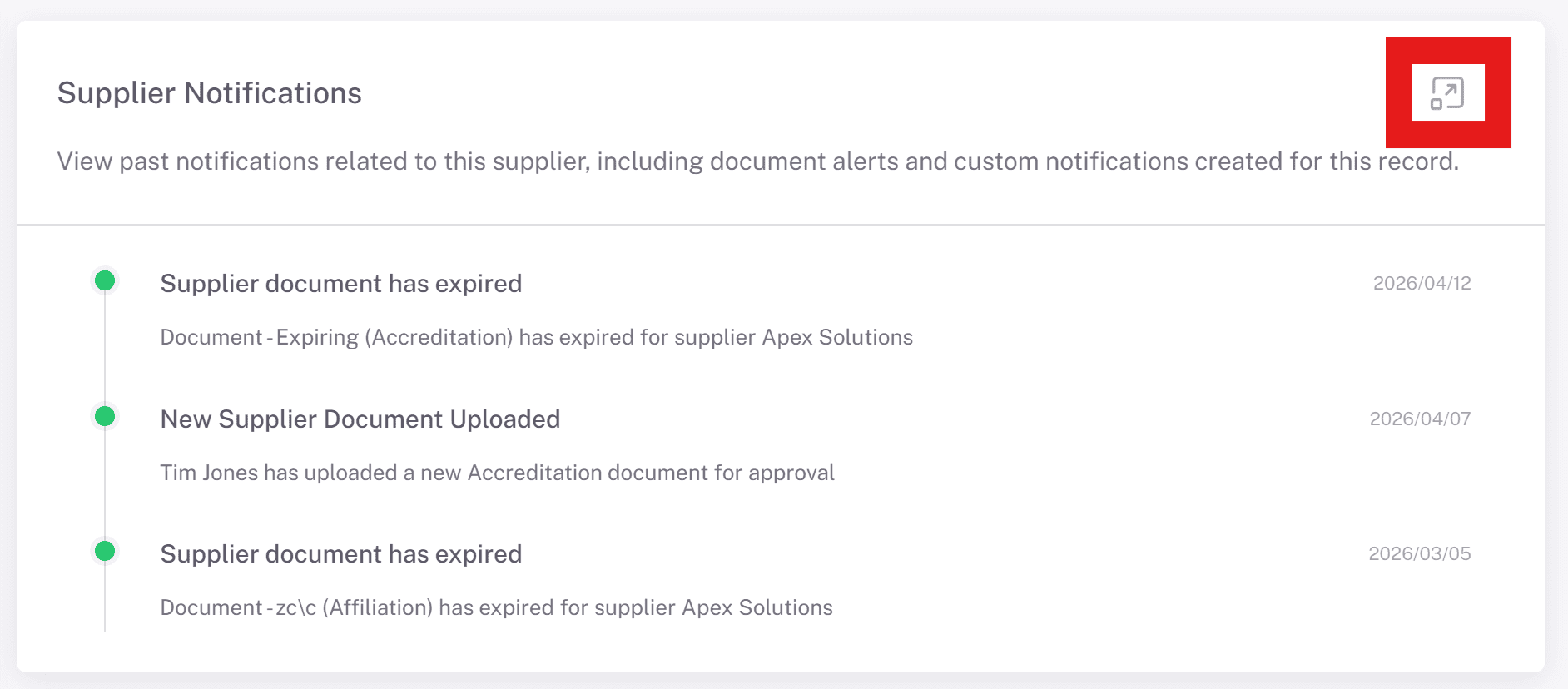
Click the full screen icon located in the top right-hand corner of the table (where available). This will expand the table to fill your screen for a clearer, more focused view.
Examples of Use:
Review large supplier lists without horizontal scrolling.
Analyse sourcing responses with more visible columns.
Compare contract data side by side more effectively.
Important Notes:
The Actions column (e.g. view, download, edit options) will not function while in full screen mode.
To access these actions, simply exit full screen using the same icon.
Why Full Screen Matters:
Full screen mode improves usability when working with complex or wide tables, helping you focus on the data without distractions and reducing the need for excessive scrolling.
Key Considerations & Best Practices
✅ Exporting large datasets may take longer to process—allow time for downloads to complete.
✅ If filters are applied, only the visible data in the table will be exported. Reset filters before exporting if you need the full dataset.
✅ Use sorting and filtering together to quickly find and export specific records without manually searching through large tables.
✅ If you do not have export permissions, ask your administrator to check your user role settings.
Additional Resources
📌 Related User Guides:
If you need further assistance, please contact your internal platform administrator for support. Otherwise please reach out to oboloo's support team. If you are unable to view the above area in the oboloo platform, please check your user permissions and access rights.