
Latest Activity is a single chronological record of everything that has happened against a supplier, contract, sourcing activity or savings record — notes, emails, calls, meetings, tasks, documents and system events, all in one timeline.
It replaces the separate Notes and Recent Notifications cards. Rather than notes sitting in one place and system alerts in another, everything now appears together in date order, so you can see the full history of a record without piecing it together from different tabs.
Latest Activity works identically across all four modules.
When to Use This Feature
When recording a conversation, call or meeting with a supplier so the detail is not lost in someone's inbox.
When logging an email exchange against the record it relates to.
When assigning a follow-up action to a colleague and tracking whether it has been done.
When preparing for a supplier review or renewal and you need the full history in one place.
When handing a record over to someone else and they need the background.
Where to Find It
Latest Activity sits on the first tab of the record page in Supplier Management, Contract Management and Savings Management. The tab is named Latest Activity.
In eSourcing the tab is named Overview, and the Invited Suppliers table remains at the top of the page with the Latest Activity card below it.
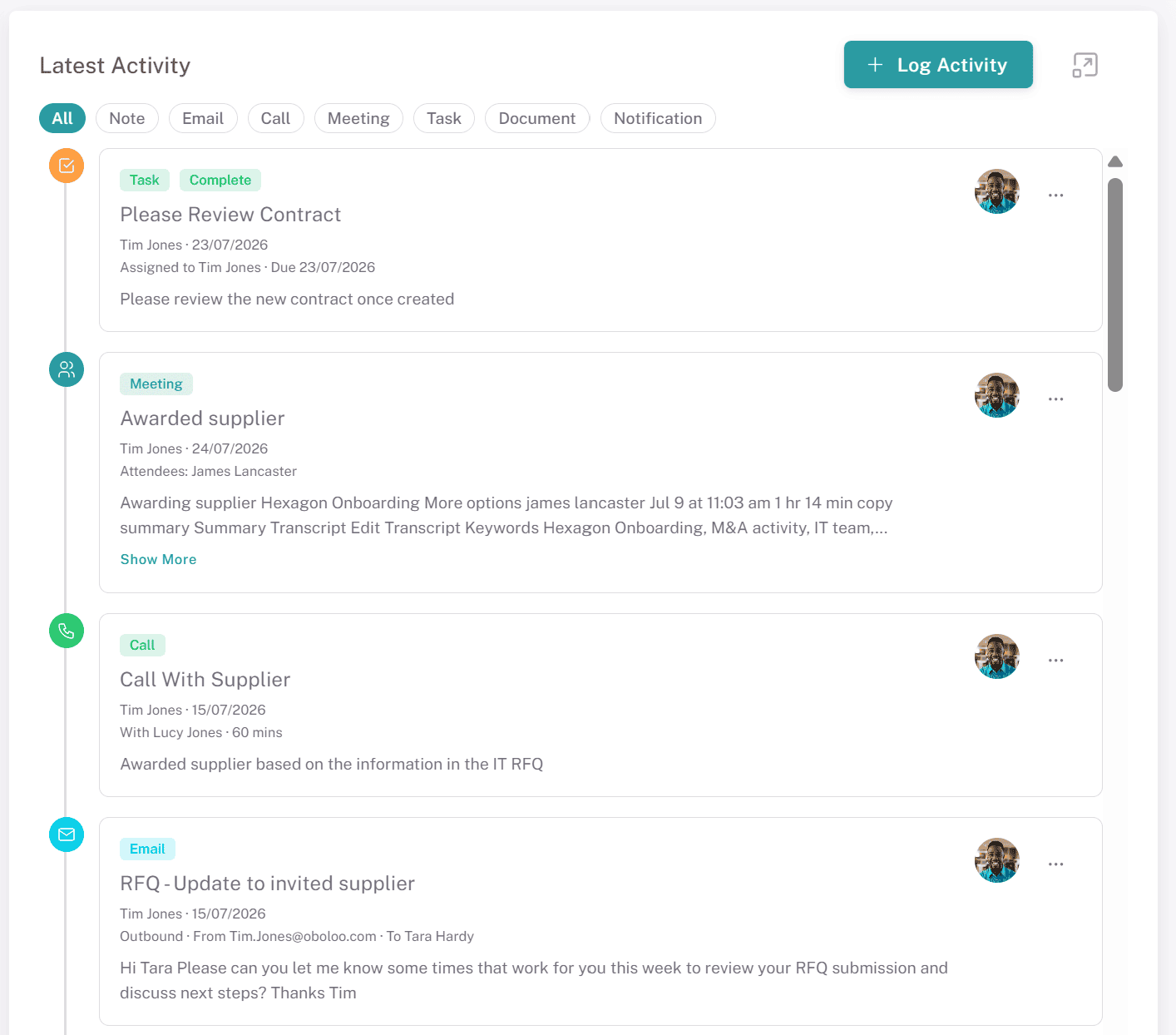
Reading the Timeline
Entries appear newest first. Each entry shows:
A type badge — a coloured label showing what kind of activity it is.
The title, in bold.
Who created it and when, below the title.
Relevant details for that activity type — for example the contact and duration on a call, or the due date on a task.
A preview of the content, which can be expanded to read in full.
The creator's avatar, showing their profile picture or their initials. Hover over it to see their full name.
Filtering the Timeline
The filter chips below the header narrow the timeline to a single activity type:
All · Note · Email · Call · Meeting · Task · Document · Notification
All is selected by default. Selecting Notification shows only system-generated events, which is a quick way to see what the platform has done to a record without your own notes in the way.
Editing and Deleting
Each entry has a three-dot menu on the right with Edit and Delete options. System notifications are read-only and cannot be edited or deleted.
Logging an Activity
Click + Log Activity in the top right of the card.
Choose the type of activity from the dropdown: Note, Email, Call, Meeting, Task or Document.
Complete the fields and save.
The entry appears immediately at the top of the timeline.
Activity Types
Note
A general free-form note against the record. Use this for anything that does not fit the other types.
Field | Required | Notes |
|---|---|---|
Title | Yes | |
Body | Yes | Rich text. Supports @mentions. |
📌 @mentions: You can mention colleagues in the body of a note. The list of people you can mention is limited to the owners of that record rather than every user in your organisation — so mentions go to the people actually responsible for it. See Supplier Owners.
Notes are timestamped automatically on save, so there is no date field.
Log an email exchange with a supplier contact by pasting it in.
Field | Required | Notes |
|---|---|---|
Direction | Yes | Inbound or Outbound. |
Subject | Yes | |
From | Yes | Depends on direction — see below. |
To | Yes | Depends on direction — see below. |
Date | Yes | Defaults to today. Change it to the date the email was actually sent or received. |
Body | Yes | Rich text. Paste the email content here. |
The Direction toggle changes which of the From and To fields uses the supplier contacts list:
Inbound — From is a dropdown of the supplier's contacts, To is free text.
Outbound — To is a dropdown of the supplier's contacts, From is free text.
The dropdown pulls from the contacts already linked to the supplier record. If the person you need is not listed, type their name in manually.
Call
Log a phone call with a supplier contact.
Field | Required | Notes |
|---|---|---|
Title | Yes | |
Contact name | Yes | Dropdown of the supplier's contacts. Type manually if the person is not listed. |
Date | Yes | Defaults to today. |
Duration | No | Free text, for example "30 mins". |
Notes | Yes | Rich text. |
Meeting
Log a meeting, with an optional transcript.
Field | Required | Notes |
|---|---|---|
Title | Yes | |
Date | Yes | Defaults to today. |
Attendees | Yes | Free text, comma separated. |
Notes | Yes | Rich text. |
Transcript | No | Rich text. Paste the transcript in. |
Attendees is free text because meetings routinely involve people who are not oboloo users or supplier contacts — consultants, colleagues without a licence, people from the supplier's wider team.
📌 Paste transcripts rather than attaching them. Pasted text is stored as readable content against the record, which means it can be searched and, in future, read by oboloo's AI features. A transcript attached as a file cannot be.
Task
Create an action item and assign it to a colleague.
Field | Required | Notes |
|---|---|---|
Title | Yes | |
Description | No | Rich text. |
Assigned to | Yes | Dropdown of oboloo users. Defaults to you. |
Due date | Yes | Defaults to today. |
Tasks are created with a status of Open.
Only the person a task is assigned to can mark it complete. They see a checkbox on the task card; everyone else sees the card without one. Once completed, the card shows a green Complete badge and a ticked checkbox.
Two emails are sent automatically:
When a task is assigned — the assignee receives an email naming who assigned it, the record type and record name, and a button linking straight to the record.
When a task is completed — the person who created it receives an email naming the assignee, the record type and record name, and a button linking straight to the record.
Document
Attach a file to the activity log.
Field | Required | Notes |
|---|---|---|
Title | Yes | |
Files | Yes | One or more files. |
Notes | No | Plain text. |
Accepted file types: .pdf .docx .xlsx .pptx .txt
Use this for supporting material — a meeting deck, a quote, a screenshot. For certificates, insurance, accreditations or anything that needs tracking, approving or renewing, use the Documents tab instead. See Adding and Requesting Supplier Documents.
Notification
Notifications are generated by oboloo, not by users. They appear in the timeline automatically when something happens to the record — a document is approved, a status changes, and so on.
They are read-only. You cannot create one, and Notification does not appear in the Log Activity dropdown. It does appear as a filter chip, so you can view system events on their own.
Latest Activity and the Change Log
These are different things and it is worth knowing which to reach for.
Latest Activity is what people and the system have done around the record — conversations, actions, follow-ups, alerts.
The Change Log is a field-level audit trail of what has been changed on the record, showing old and new values. Use it when you need to know who altered a value and when. See Supplier Change Log.
Key Considerations & Best Practices
✅ Log activity as it happens — A call logged the same day carries the detail that a call written up a fortnight later does not.
✅ Pick the right type — Logging a call as a Note works, but you lose the ability to filter, and the contact and duration go unrecorded.
✅ Use Tasks rather than notes to yourself — Tasks are assignable, have a due date, notify the assignee, and can be marked complete. A note saying "chase this" does none of that.
✅ Paste transcripts — Pasted content is readable and searchable within oboloo. An attached file is not.
✅ Correct the date on emails and calls — These fields default to today. Leaving them wrong when logging something retrospectively puts entries out of order.
✅ Keep compliance documents in the Documents tab — Files attached to activity are not tracked, approved or reported on.
Additional Resources
📌 Related User Guides:
Automated Notifications – The system events that appear in the timeline.
Custom Notifications – Creating your own reminders against a record.
Supplier Owners – Record owners, who are the people available to @mention.
Adding and Requesting Supplier Documents – Storing documents that need tracking and approval.
Primary Supplier Contacts – The supplier contacts available in the Email and Call dropdowns.
Supplier Change Log – The field-level audit trail.