
Custom fields allow organisations to capture and track additional data points beyond the standard fields provided within oboloo.
These fields offer flexibility, allowing users to customize oboloo to meet their specific business needs without being constrained by predefined structures.
By using custom fields, businesses can improve data tracking, enhance reporting and ensure their procurement, contract, savings, and sourcing activities align with their internal workflows. Custom fields can be applied across all the modules, they are fully supported for API integrations and can be exported and filtered when included in the Summaries section of records.
You can re-order custom fields directly on the record page to control how information appears. This lets you highlight the most important custom field data.
This guide will walk you through creating a custom field, applying it to different sections of the platform, managing existing fields, and best practices for ensuring seamless usage.
When to Use This Feature
✅ When an organisation needs to track additional information that is not included in standard fields.
✅ When structuring supplier, contract, savings, or sourcing data to align with specific business needs.
✅ When ensuring consistent data collection across procurement activities.
✅ When enhancing reporting by making custom fields available to export and filter in Summaries
✅ When integrating custom field data with third-party systems via API.
Step-by-Step Guide: Creating a Custom Field
Step 1: Navigate to Custom Fields
Click on Settings from the main menu.
Click on Custom Fields to access the list of all existing fields.
Click on Create New Custom Field button at the top of the table.
Step 2: Create a New Custom Field
Enter a Field Name that clearly defines what information will be captured.
Select a Module Type from the available options:
Supplier Management
Contract Management
Savings Management
Sourcing
Select a Field Type from the available options:
Text – Captures freeform text responses.
Number – Stores numerical data such as values, costs, or reference numbers.
Date – Allows users to input specific dates, such as deadlines or contract expiry dates.
Dropdown – Allows users to limit choices to predefined options, helping users avoid mistakes.
Choose the Area of Placement, which determines where the custom field will appear within the selected module. Available placement options include:
Supplier Management
Supplier Summary
Documents Tab (Suppliers can see this field when receiving a document request)
Supplier Notes
Supplier Contacts
Custom Created Tabs
Contracts
Contract Summary
Documents Tab (Suppliers can see this field when receiving a document request)
Contract Notes
Financials Tab
Termination & Extension Notes
Custom Created Tabs
Savings
Savings Summary
Attachments Tab
Savings Notes
Milestones Tab
Custom Created Tabs
Sourcing
Sourcing Summary & Activity Overview (Suppliers can see this field)
Documents Tab & Adding Documents To Sourcing Activity (Suppliers can see this field)
Sourcing Notes
Financials Tab & Adding Pricing to Sourcing Activity (Suppliers can see this field)
Supplier Sourcing Sections (Suppliers can see this field)
Supplier Questionnaires (Suppliers can see this field)
✅ Tick the Enable this custom field for use checkbox if the field should be active immediately.
Click Save to finalise the creation of the custom field.
NB: You can re-order custom fields directly on the record page to control how information appears. This lets you highlight the most important custom field data.
Step 3: Viewing a Custom Field in a Record
Once a custom field is created, it will be available in the specific area of placement that was selected during setup. To view the custom field:
Navigate to the module where the field was added (e.g., Contracts, Savings, Sourcing, or Supplier Management).
Open a relevant record (e.g., a contract, savings activity, sourcing event, or supplier profile).
Locate the custom field in its designated section (e.g., Contract Summary, Financials, or Supplier Notes).
If necessary, use the Edit Columns button to toggle the custom field on or off in table views.
📌 Note: Custom fields are also included in the Export Function, allowing users to pull reports that include custom field data.
Step 4: Managing and Editing Custom Fields
Custom fields can be managed from the Custom Fields page in Settings.
Use the Filter by Module and Filter by Status to locate the field to edit.
To edit a custom field, click on the field from the list.
Only the custom Field Name can be edited.
If the field is already in use, it cannot be edited. Instead, you will see a red alert message stating:
"Only the name of the field can be edited once a custom field is created. You can disable this field if no longer needed using the tick box below. This will remove the field from all existing records however the field values will be available when reenabled. You can view where this field is being used under the 'View records using this field' dropdown below."Your organisation will need to remove the values of that field against all records where it exists before it can be edited.
To view where a field is being used, click the View Records Using This Field dropdown.
If a field is no longer needed, you can disable it by unchecking the Enable this custom field for use option.
📌 Important: If a field needs to be modified but is currently in use, users must first remove it from all associated records before making any changes.
📌 Note: Custom fields are also included the records Change Log tab allowing users to view any changes made to that field within that record.
Step 5: Reordering Custom Fields
You can reorder custom fields directly on the record page to control how information is displayed. This helps prioritise key data (e.g., compliance info, financial details) at the top of a record.
How to Reorder Fields
Navigate to a record in Supplier, Contract, or Savings Management.
Scroll to the section containing your enabled custom fields (e.g., Supplier Summary, Contract Documents, custom tab).
Click the Edit option in that section.
Use drag-and-drop to move fields into the desired order.
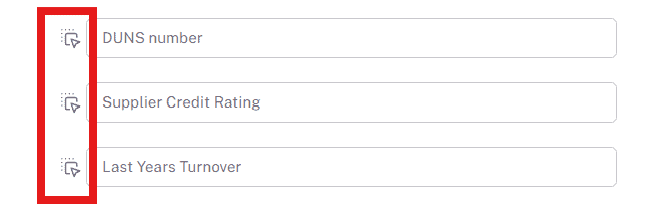
Click Save to confirm the new layout.
How It Works
The order you set is global – it applies to all records of that type within the module.
Only enabled fields appear in the reorder interface.
Newly enabled fields are added to the bottom of the section by default.
Fields can only be reordered within their section (e.g., a field in Summary cannot be moved into Documents).
📌 Permission Control:
A permission called Reorder is available within the user roles table on the Custom Fields row is available under User Roles > Custom Fields.
Users without this permission checked, will not see the reorder option on records.
Key Considerations & Best Practices
✅ Plan Before Creating Fields – Ensure that the field name and type align with your reporting needs.
✅ Use the Edit Columns Feature – Toggle custom fields on and off in table views for a cleaner display.
✅ Limit Reorder Access – Restrict the Reorder Custom Fields permission to admins or power users for consistency.
✅ Monitor Custom Field Usage – If a field is no longer needed, disable it instead of deleting it.
✅ Check API Availability – Custom fields are accessible via API for external system integration.
✅ Ensure Data Integrity – Avoid unnecessary field duplication by reviewing existing fields before creating new ones.
If you need further assistance, please contact your internal platform administrator for support. Otherwise please reach out to oboloo's support team. If you are unable to view the above area in the oboloo platform, please check your user permissions and access rights.