
Record access allows record owners to restrict an individual supplier, contract, sourcing activity, or savings record so that other users in your organisation can either view it but not change it, or not see it at all.
By default every record is unrestricted — anyone with access to that module can view and edit it. Restricting a record is optional and is applied one record at a time. It works the same way across all four modules.
Record access applies to internal platform users only. It has no effect on the supplier portal, and suppliers responding to document requests, questionnaires, or sourcing activities are not affected in any way.
When to Use This Feature
When a record contains commercially sensitive information that should only be changed by the people responsible for it.
When a negotiation, tender, or contract renewal should be visible to the wider team but not editable by them.
When a record relates to a confidential project and should not be visible to anyone outside the owning team.
When you want to prevent accidental edits to a record that is being actively worked on.
The Three Access Levels
Every record is set to one of three levels:
No restriction — Anyone can view and edit this record. This is the default.
Only owners can edit — Anyone can view this record. Only owners can edit it.
Only owners can view and edit — Only owners can view and edit this record.
.
Step-by-Step Guide
1. Setting Record Access When Creating a Record
Create your record as normal.
On the final step, find the Record access heading.
Select one of the three options.
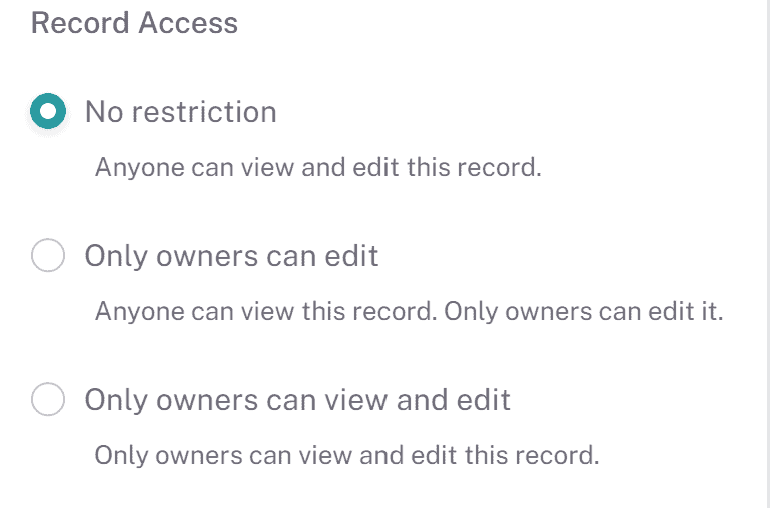
Save the record.
2. Changing Record Access on an Existing Record
Open the record you want to change.
On the summary card on the left-hand side, click the Record access button.
The Record access window opens with the current level already selected.
Choose a different level.
Click Save to apply the change, or Cancel to close without changing anything.
3. Who Can Change Record Access
Changing record access is treated as an edit, so the people who can change it are the same people who can edit the record:
If a record has No restriction, anyone who can edit records in that module can change its access level.
If a record is restricted at either level, only its owners can change the access level.
Administrators can always change the access level on any record.
What Each Level Does
Only owners can edit
The record stays visible to everyone who can access the module, and continues to appear in all tables and reports as normal. For anyone who is not an owner or an administrator, the record becomes completely read-only.
This means they cannot:
Edit any fields on the record
Add or edit notes
Upload, replace, or delete documents
Add or remove linked items such as contacts or contracts
Add or remove owners
Change the record access level
Archive the record
When a non-owner opens a record set to this level, a red lock icon appears on the summary card beside the record title. Hovering over the icon displays the message "This record is restricted. Only its owners can make changes."
Only owners can view and edit
The record is hidden entirely from anyone who is not an owner or an administrator. It will not appear:
In the module home page table
In any sub-table where it would normally be listed, such as the Contracts tab within a supplier record
If a user who is not an owner opens the record directly — for example through a bookmark or a link shared before the record was restricted — they will see the standard message confirming they cannot access the page.
Administrators
Administrators are never restricted by record access. They can view and edit every record in the platform regardless of its access level, they see all records in every table, and they never encounter the access blocker.
Record Access and Owners
Because a restricted record can only be reached by its owners and administrators, every record must always have at least one owner assigned. If you try to remove the only owner from a record, oboloo will prevent the change and ask you to add another owner first.
Existing Records
All records that existed before this feature was released are set to No restriction. Nothing is hidden or locked until someone chooses to restrict it.
Key Considerations & Best Practices
✅ Restrict only where it is needed — Restricting records reduces visibility across your team, so apply it where there is a clear reason.
✅ Use "Only owners can edit" first — It protects the record from unintended changes while keeping it visible to the wider team.
✅ Assign more than one owner — A restricted record with a single owner is difficult to hand over and inaccessible if that person is away.
✅ Review restrictions regularly — A record restricted during a live negotiation rarely needs to stay restricted once it has concluded.
✅ Explain dashboard differences to your team — Users may notice a dashboard total that is higher than the number of rows they can see. This is expected behaviour.
Additional Resources
📌 Related User Guides:
Supplier Owners – Assigning and managing supplier owners.
Contract Owners – Assigning and managing contract owners.
Sourcing Owners – Assigning and managing sourcing owners.
Savings Owners – Assigning and managing savings owners.
User Roles & Access Rights (RBAC) – Setting module-level permissions for user roles.
Viewing Your Access Rights – Checking the permissions assigned to your account.
If you need further assistance, please contact your internal platform administrator for support. Otherwise please reach out to oboloo's support team. If you are unable to view the above area in the oboloo platform, please check your user permissions and access rights.