
The Sourcing Management Home Page is your central hub for managing sourcing activities, tracking supplier responses, and monitoring evaluation progress.
It provides real-time updates on sourcing events, completed activities, and outstanding scoring tasks, ensuring that procurement teams stay on top of sourcing workflows efficiently.
This guide will walk you through how to navigate the Sourcing Management Home Page, understand key features, and interact with sourcing activities.
When to Use This Feature
✅ When managing active and completed sourcing events.
✅ When tracking supplier responses and evaluation progress.
✅ When scoring supplier submissions and reviewing completed sourcing activities.
✅ When filtering, searching, and exporting sourcing activity data for reporting.
Step-by-Step Guide: Navigating the Sourcing Management Home Page
Step 1: Understanding the Sourcing Dashboard
When you land on the Sourcing Management Home Page, you will see an overview of all sourcing activities in progress, pending evaluation, or recently completed. The dashboard provides real-time updates to help you stay informed and take action where needed.
At the top, you will see three key panels that highlight important sourcing actions:
Review New RFP Responses – Displays a list of suppliers who have submitted responses for active sourcing activities. Clicking on this section allows you to evaluate and score supplier submissions.
Completed Sourcing Activities – Shows sourcing activities that have passed the submission deadline and are now ready for evaluation. Clicking on this section allows you to review supplier responses and move toward awarding suppliers.
Sourcing Activities to Score – Lists sourcing activities where you have been assigned as a scorer and need to complete evaluations for supplier responses. Clicking on this panel takes you to the scoring interface, where you can review and assign scores to suppliers.
Each of these sections provides direct access to the relevant sourcing activities, ensuring that users can efficiently complete sourcing tasks.
Step 2: Using the Sourcing Activities Table
Below the real-time update panels, the Sourcing Activities Table provides a detailed view of all sourcing events. Each row represents a sourcing activity and contains key details such as:
Sourcing Activity Title
Category & Subcategory
Opening & Closing Dates
Department
Sourcing Type
Activity Status
To refine the list of sourcing activities, use the filter options located above the table. You can filter sourcing records by:
Opening Date & Closing Date
Location & Department
Category & Subcategory
Sourcing Type
Created By
If you need to adjust the displayed columns, click the Edit Columns button. This allows you to customise the table to include additional sourcing details relevant to your workflow.
Step 3: Searching for a Sourcing Activity
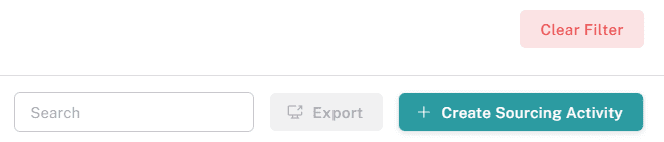
To quickly locate a specific sourcing activity, use the search bar at the top of the table. You can search by sourcing title, category, department, or creator. The system will instantly filter the results based on your query.
Step 4: Accessing a Sourcing Activity Record
To view the full details of a sourcing activity, click on the sourcing activity title in the table. This will open the Sourcing Activity Record, where you can:
Review supplier responses – View and compare supplier submissions.
Evaluate and score responses – Assign scores to supplier answers and pricing submissions.
Manage sourcing documents – Upload supporting documents related to the sourcing event.
Track sourcing progress – Monitor key dates, supplier engagement, and response status.
Step 5: Creating a New Sourcing Activity
To initiate a new sourcing event, click the Create Sourcing Activity button at the top of the page. This will launch the sourcing creation wizard, guiding you through steps such as:
Defining sourcing requirements and evaluation criteria.
Adding suppliers and assigning scorers.
Setting opening and closing dates.
Including supporting documents and supplier questionnaires.
Once published, the sourcing activity will be visible in the main table for tracking and management.
Step 6: Scoring Supplier Responses
If you are assigned as a scorer, sourcing activities requiring evaluation will appear in the Sourcing Activities to Score section. Clicking on a sourcing activity will take you to the scoring interface, where you can:
Review supplier questionnaire responses.
Evaluate pricing submissions.
Compare supplier proposals against weighted scoring criteria.
Once all sections are scored, final evaluations can be completed, and the supplier selection process can proceed.
Step 7: Exporting Sourcing Data
If you need to generate reports or analyse sourcing activity data, click the Export button. This allows you to download sourcing records in CSV format, enabling easy reporting on procurement performance, supplier responses, and evaluation trends.
Key Considerations & Best Practices
✅ Monitor Supplier Responses in Real Time – Regularly check the "Review New RFP Responses" panel to stay updated on supplier submissions.
✅ Complete Scoring on Time – Ensure you evaluate and score supplier responses before awarding decisions.
✅ Use Filters to Organise Data – Customise the sourcing table to focus on key sourcing activities.
✅ Export Data for Analysis – Use the export function to generate reports on sourcing performance and supplier engagement.
✅ Track Completed Sourcing Events – Review completed sourcing activities to ensure supplier selection is based on thorough evaluations.
Additional Resources
📌 Related User Guides:
Creating a Sourcing Activity - How to create a sourcing activity in oboloo
Evaluating Supplier Responses – A guide to evaluating and scoring supplier submissions.
Adding & Editing Configurations – How to manage configurations
Creating & Managing Custom Fields - How to easily add custom fields
Customising Table Views - How to add and remove columns when viewing tables
Sorting, Filtering & Exporting Tables - How to manage tables notifications.
If you need further assistance, please contact your internal platform administrator for support. Otherwise please reach out to oboloo's support team. If you are unable to view the above area in the oboloo platform, please check your user permissions and access rights.