
oboloo provides users with the flexibility to customise table views by adding or removing columns.
The table customization feature allows you to tailor the displayed data to your specific needs, making it easier to manage and analyze information related to contracts, suppliers, sourcing activities, and savings.
This guide will provide step-by-step instructions on how to add or remove columns in table views to create customized displays.
When to Use This Feature
When you need to focus on specific data fields within a table.
When you want to declutter the view by hiding irrelevant columns.
When creating a custom view to streamline your workflow.
Step-by-Step Guide
1. Access the Table Settings
Navigate to the relevant module, such as Contracts, Suppliers, Savings, or Sourcing Activities.
Locate the table you wish to customize.
Click on the blue Edit Columns button at the top of the table.

2. Add or Remove Columns
Adding Columns:
After clicking Edit Columns, a list of available fields will be displayed.
Tick the checkbox next to the fields you wish to add to the table.
The selected column will immediately appear in the table view.
Removing Columns:
To remove a column, untick the checkbox next to the column you no longer wish to see.
The column will be instantly removed from the table view.
Full Screen Tables
Full screen mode allows you to expand tables for improved visibility, making it easier to work with large datasets.
How to Use Full Screen:
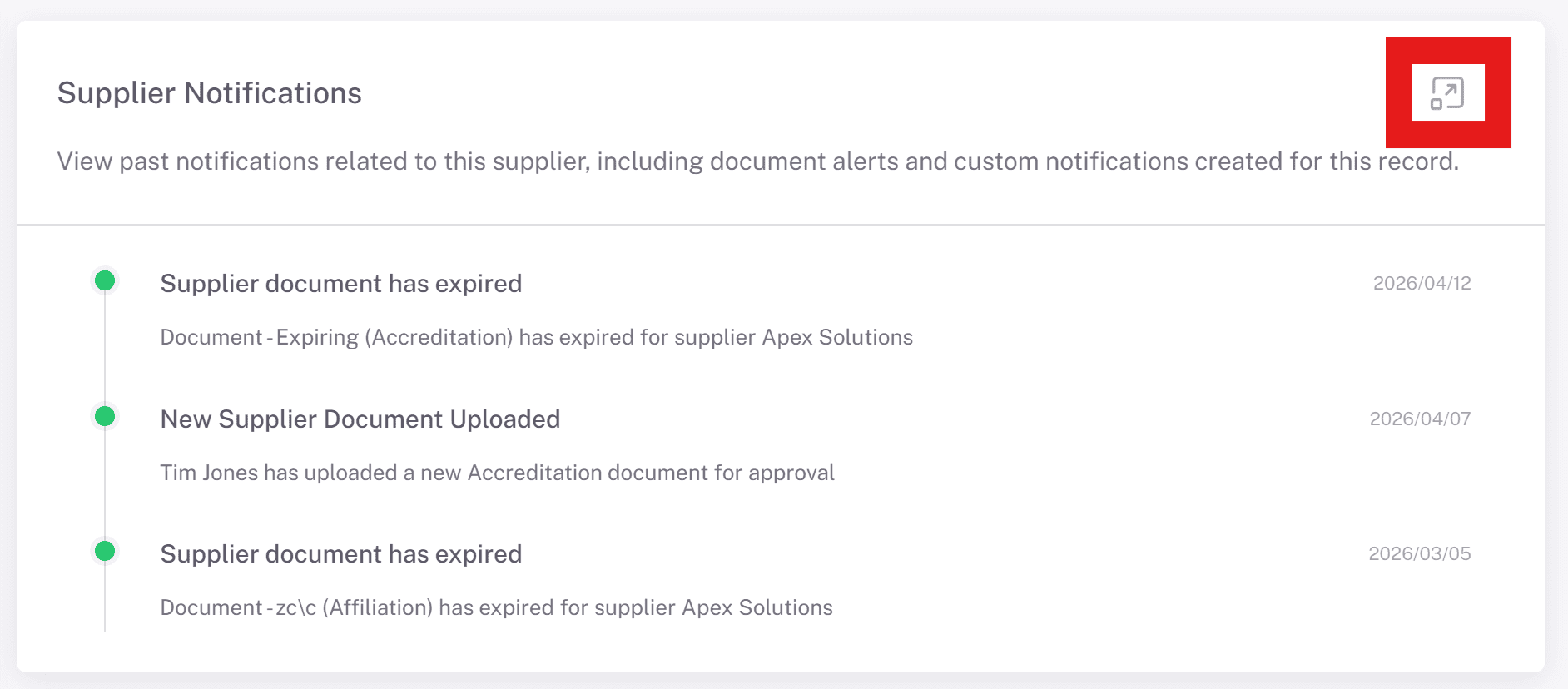
Click the full screen icon located in the top right-hand corner of the table (where available). This will expand the table to fill your screen for a clearer, more focused view.
Examples of Use:
Review large supplier lists without horizontal scrolling.
Analyse sourcing responses with more visible columns.
Compare contract data side by side more effectively.
Important Notes:
The Actions column (e.g. view, download, edit options) will not function while in full screen mode.
To access these actions, simply exit full screen using the same icon.
Why Full Screen Matters:
Full screen mode improves usability when working with complex or wide tables, helping you focus on the data without distractions and reducing the need for excessive scrolling.
Key Considerations & Best Practices
✅ Regularly Review Your Table Views – Periodically update your table settings to ensure you are seeing the most relevant data.
✅ Create Custom Views for Specific Tasks – Customize tables based on your current workflow or reporting needs.
✅ Keep Views Clean and Focused – Avoid adding unnecessary columns to maintain a clear and manageable view.
✅ Leverage Custom Views for Efficiency – Use tailored table displays to save time and improve data analysis.
Additional Resources
📌 Related User Guides:
📌 Need Further Help?
If you encounter issues with customizing table views or need assistance, reach out to your System Administrator or the support team for support.