
The supplier import tool in oboloo allows you to quickly add or update multiple suppliers in bulk using a CSV file. This saves time and ensures your supplier database remains accurate and consistent.
When to Use This Feature
Use the supplier import tool when:
You are new to oboloo and wish to get up and running quickly.
You are onboarding a large list of suppliers.
You need to update multiple supplier records at once.
You want to maintain consistent supplier data formatting using bulk uploads.
Step-by-Step Guide - Importing Suppliers
1. Access the Import Tool
From the main menu, go to Settings > Import Data
Click Import Suppliers (green button) under the Type tab.
To make importing your suppliers as simple as possible, there is a downloadable import template. Download the template, populate it with your supplier data, and upload it back into oboloo to create your supplier records quickly and accurately. The only mandatory field is Supplier Name.
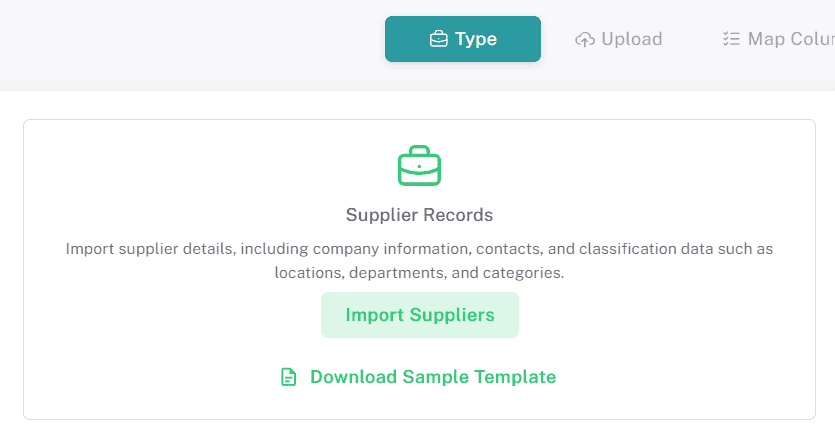
2. Upload Your CSV File
In the Upload tab, click Choose File and select your CSV from your device.
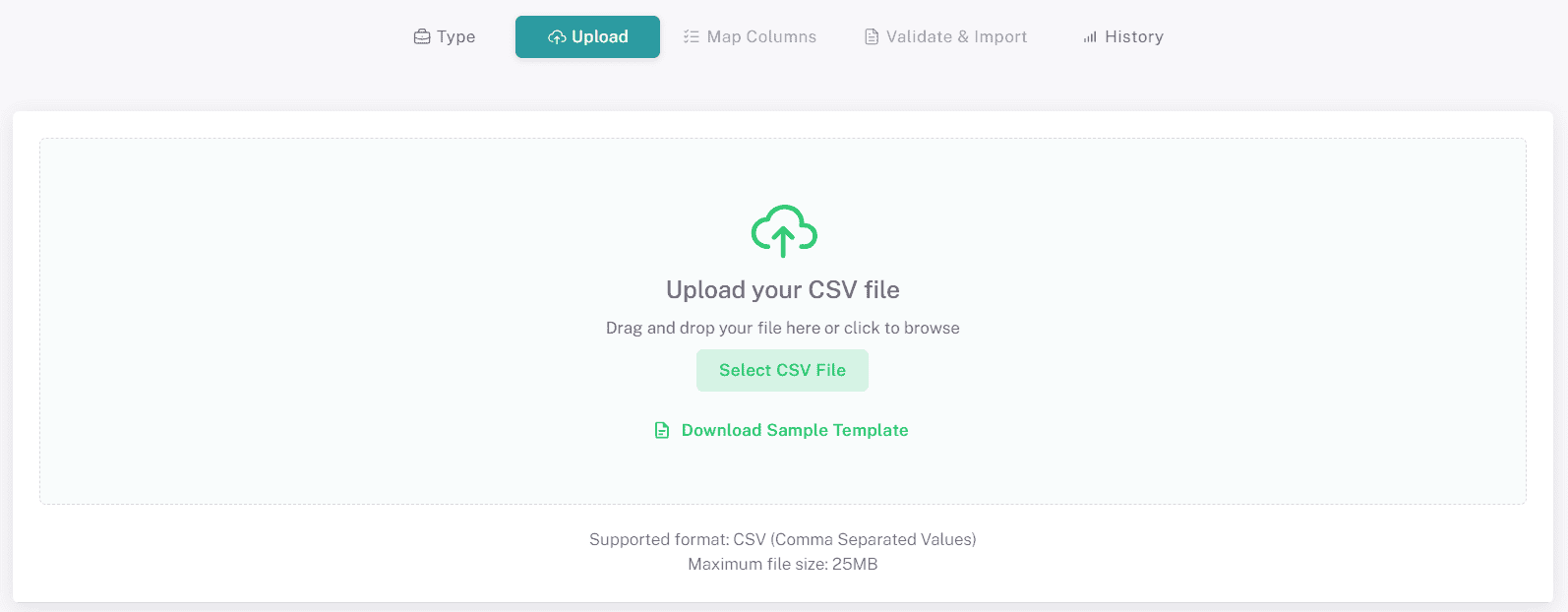
After uploading, a preview of the first 5 rows will appear.
Click Continue to Mapping.
3. Map Your Columns
In the Map Columns tab, match each column from your CSV (first column) to the relevant oboloo field by selecting from the drop-down menus.
Custom Fields
If a CSV column header text matches with an oboloo field name, it will map automatically.

A live preview of your mapped data will appear on the right-hand side.
Required fields not mapped will be shown in red at the top of the page.

Optional but recommended fields not mapped will be shown in orange at the top of the page.

Once all required columns are mapped, click Continue.
4. Validate Your Data
The Import tab will display any validation issues that need to be resolved by you:
Supplier Name missing
Incorrect data type – e.g., text in a number field.
Duplicate records - supplier name and reference already exist. These will be updated rather than re-imported.
The Import tab will also display any validation issues that can be automatically fixed by oboloo:
Missing configuration drop down values within oboloo, e.g. Locations and Industries.
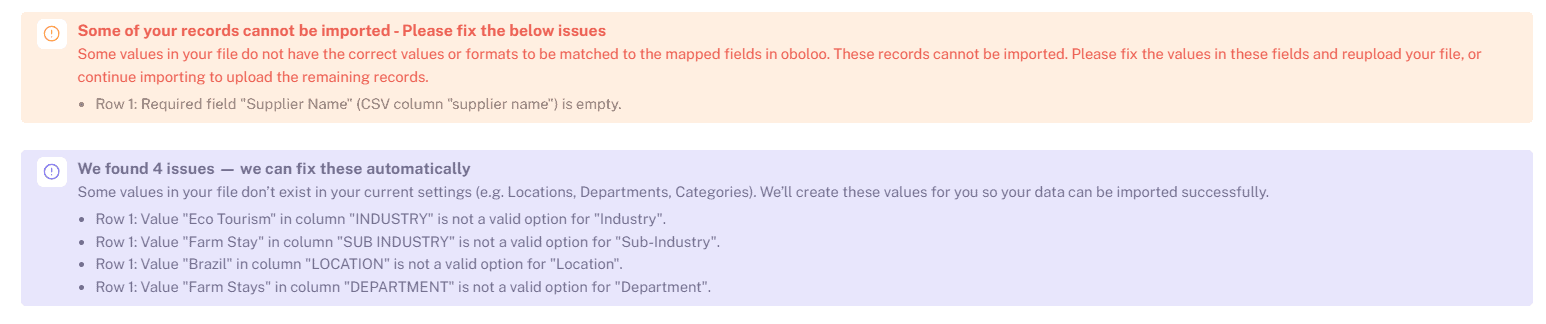
Review the Field Mapping Summary at the bottom to confirm correct mappings.
5. Start the Import
Click Start Import to begin.
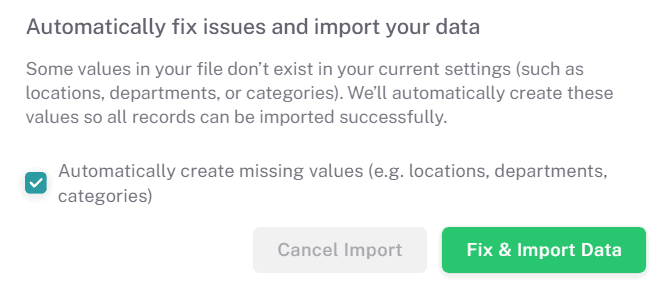
If warnings are present, a confirmation popup will appear.
Select "Automatically Create Missing Values" to automatically add any new values to the relevant configuration dropdowns in Settings.
Rows with errors will not be imported.
Monitor the progress bar – imports usually complete within a few minutes.
6. Review and Fix Errors
Once the import is complete, any rows with errors can be downloaded in an Error Report from the Import tab.
Correct the issues in your spreadsheet, remove successfully uploaded rows, and re-upload the fixed file.

7. Check Import History
Go to the History tab to view past imports, including:
Who performed the import
Number of records processed
Number successfully imported
Number of errors
Status (Success / Failed)
From here, you can also download past error reports and import summaries.
Key Considerations & Best Practices
✅ Always check that your CSV headers match oboloo field names to speed up mapping.
✅ Validate dropdown values (e.g., Industry, Supplier Type) in Settings before uploading.
✅ Keep your CSV clean — remove unnecessary blank columns and rows.
✅ For updates, ensure the Supplier Name and Supplier Reference match exactly with existing records.
Additional Resources
📌 Related User Guides:
Creating a Supplier – How to add new suppliers and enable onboarding
Importing Contracts - How to import contracts in Bulk
If you need further assistance, please contact your internal platform administrator for support. Otherwise please reach out to oboloo's support team. If you are unable to view the above area in the oboloo platform, please check your user permissions and access rights.