
Your organisation’s subscription determines which modules are available within the platform. Administrators or users with access rights to the Account Management page in your oboloo platform can modify their organizations subscription to add or remove modules as business needs evolve.
Changing modules allows organizations to enable additional functionality such as Supplier Management, Contract Management, Sourcing, or Savings Management, or reduce access if a module is no longer required.
Subscription changes are managed through the secure billing portal connected to your organisation’s account.
When to Use This Feature
You may want to change the modules included in your subscription when:
Your organization wants to enable additional functions not available on the free-forever plans.
You wish to upgrade to a module with advanced functionality.
Certain modules are no longer required.
You are adjusting your subscription as your team grows or shrinks.
Step-by-Step Guide
1. Access Account Management: Expand the "Settings" menu on the left-hand main menu and select "Account Management."

2. Manage Subscription: Click on the "Manage subscription" button. You will be redirected to the customer portal hosted by Stripe.
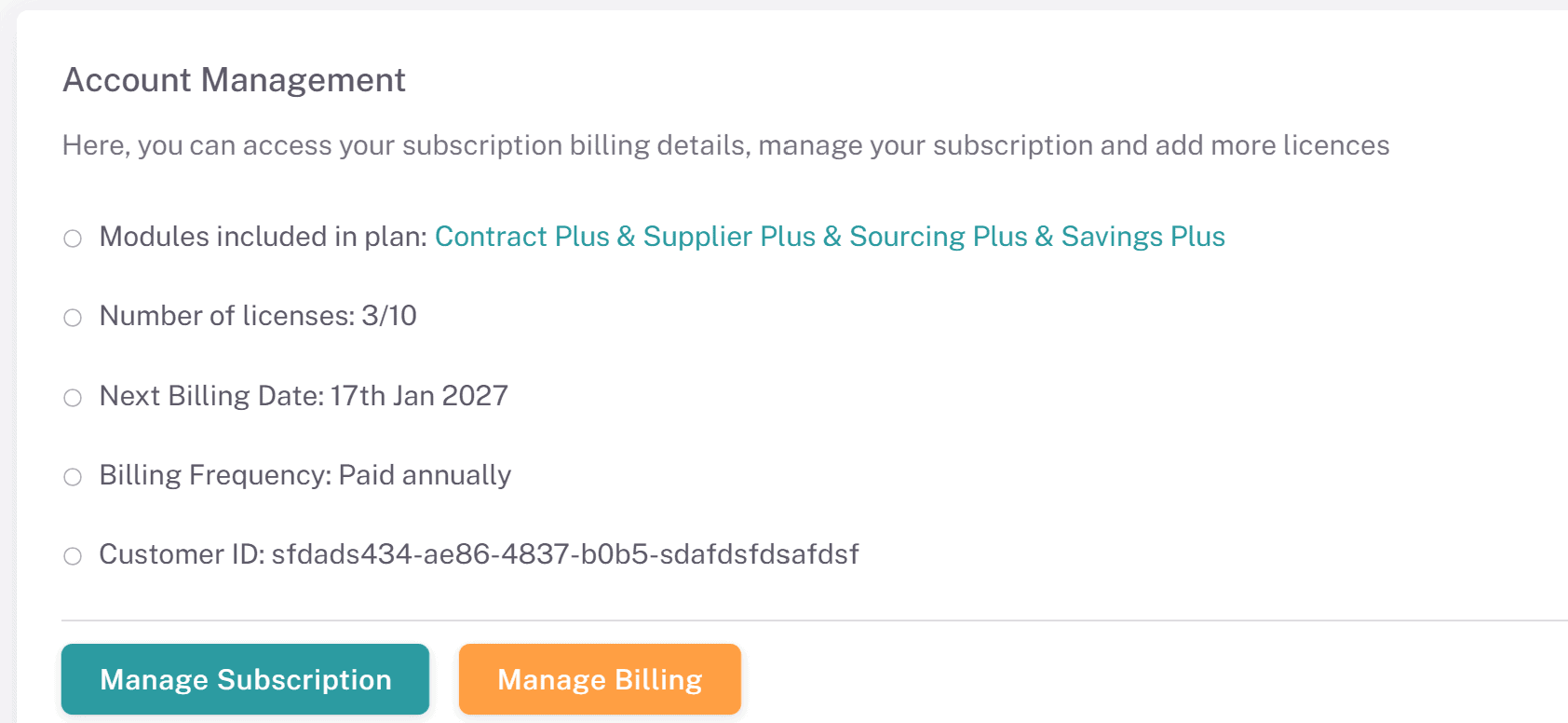
3. Review Current Subscription:
You will be redirected to oboloo's subscription page where you will see all available Plus plans. Simply click the button at the bottom of each of the module cards to either remove that module from your subscription or add it to your current subscription.
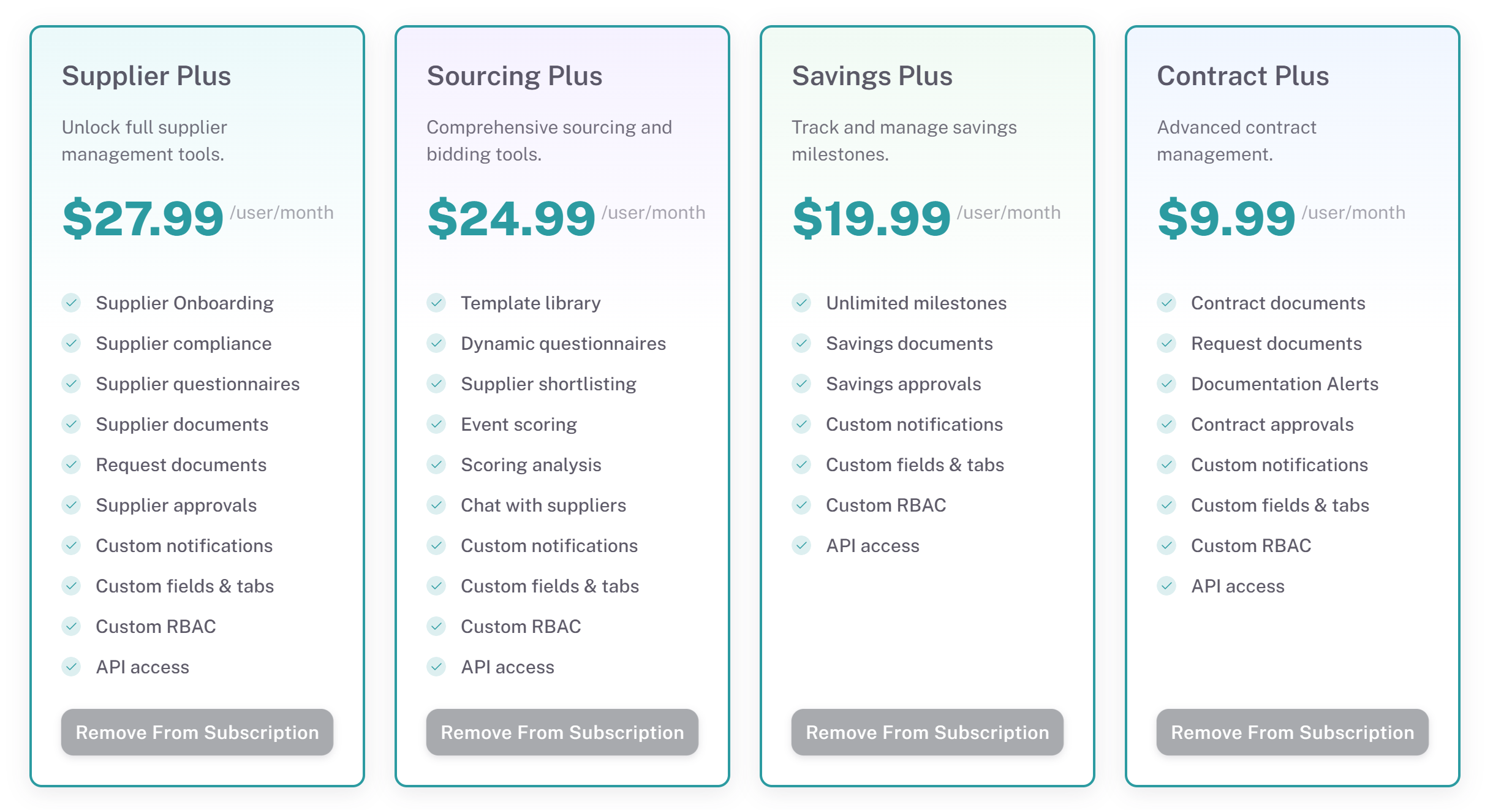
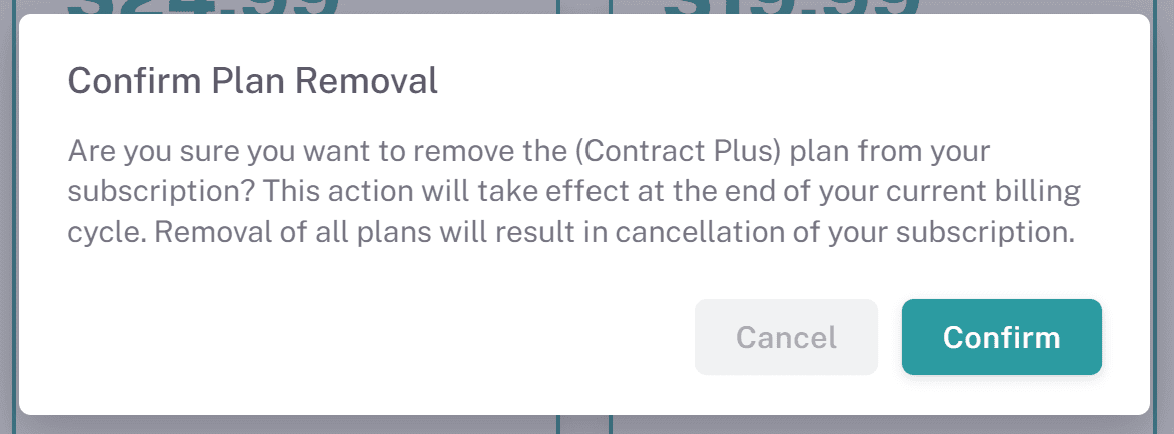
4. Removing modules: If you wish to remove a module from your subscription, click the Remove From Subscription button. This will open up a new confirmation popup, letting you confirm the removal of that module.
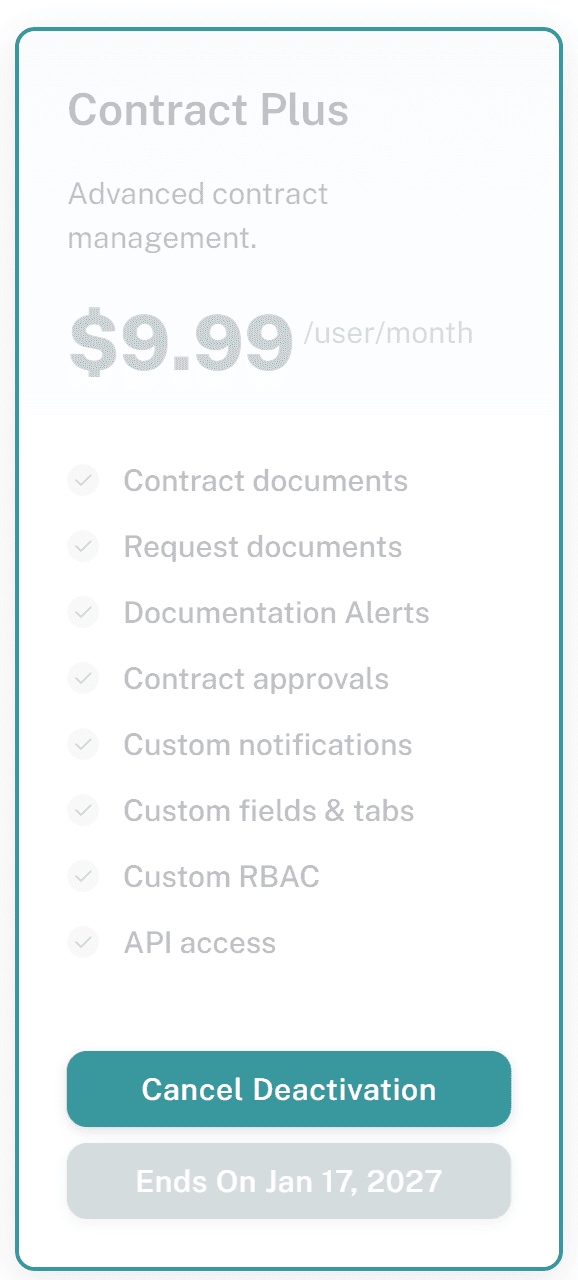
Once confirmed, the module will be shown as pending deactivation. The module will be removed from your subscription on your organizations next billing date, shown in the grey box on the module card in the screenshot below. Your organization will continue to have access to the plus plan for that module until your next billing date where the module will be downgraded to the free plan.
You can cancel the removal of the module from your subscription at any time by clicking the Cancel Deactivation button on the module card.
5. Adding modules to your subscription: Select which modules you would like to add in your subscription by clicking the '+ Add To Subscription' button on each of the module cards. You may choose just one module, or multiple. As your begin to select each module, they will appear on the right-hand side of the page in a new panel.
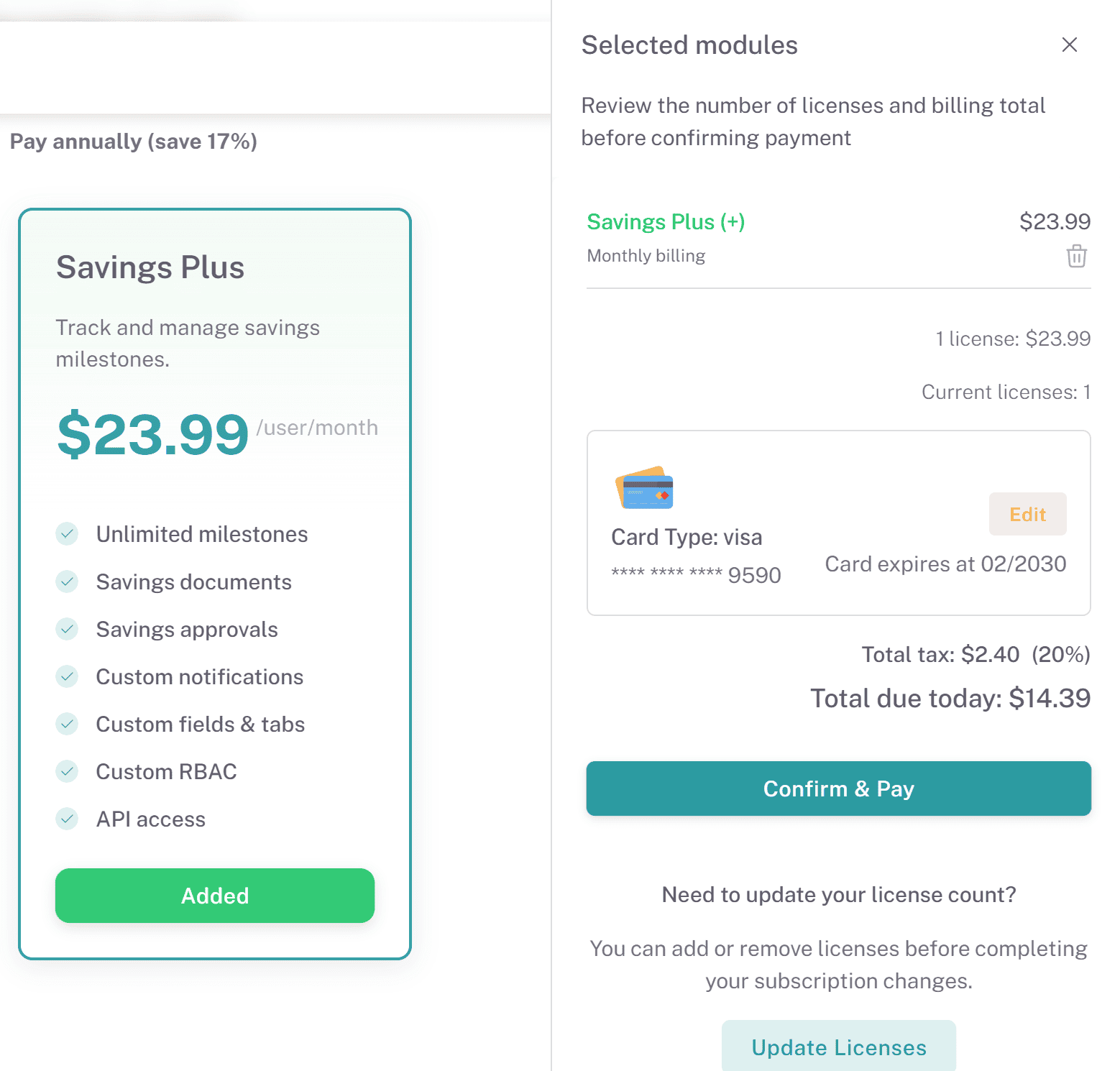
Once you have selected the modules you would like to include in your oboloo subscription, click the 'Confirm & Pay' button, shown in the screenshot above.
Payment Method
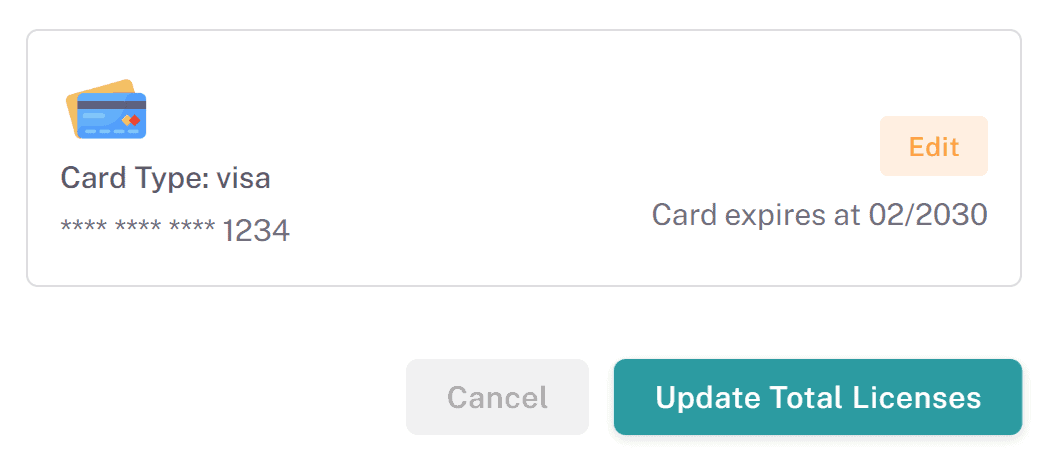
When adding a new module, your organizations default payment method will be automatically charged. This payment method is shown on the confirm and pay popup panel. Please ensure you have your organizations or the card holders permission to charge the payment method on file. oboloo takes no responsibility if an employee uses their organizations saved default payment without prior authorization.
Find out how to change your organizations default payment method here.
6. Assign Licenses To Users: Once you have upgraded, you will need to assign users licences to access oboloo, including those who were using oboloo on the free forever plan if you wish for them to continue accessing oboloo. By default, the primary user who upgraded to the paid plan is already assigned a license.
To assign a license to a user, go to the users profile (Settings > Users) and navigate to the 'License & Plans' tab. Click the green 'Assign License' button.
Prorated Billing
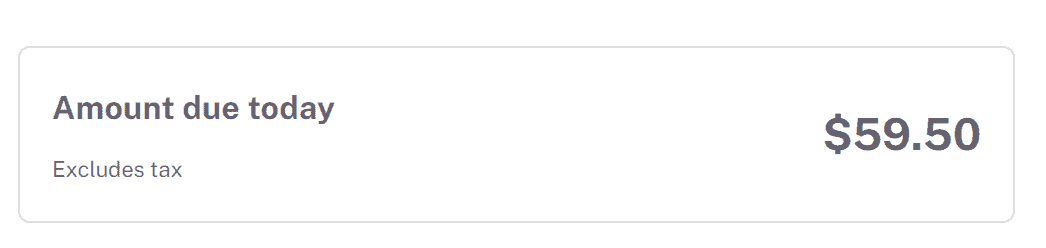
At oboloo, we use prorated billing to ensure you only pay for the exact amount of time you use additional licenses. This means that if you add licenses partway through your billing cycle, you'll only be charged for the remaining period. For example, if your annual license costs $995.88 and you add a license halfway through the year, you will be billed approximately $497.94 for that license. This prorated amount reflects the cost for the remaining six months of the annual billing period. This ensures fair and transparent billing, so you only pay for what you use.
When increasing the quantity of licenses against your subscription, you will be shown the prorated amount (Amount Due Today) on the Update Licenses popup.
Important Notes
Immediate Billing: Additional modules are billed immediately.
Module Availability: New modules are available immediately after purchase. Removed modules remain active until the next billing cycle, after which point they will be downgraded to the free forever plan.
Important Points to Remember
Plan Selection: Carefully choose between the monthly and annual plans based on your organization's needs. Remember, the annual plan offers a 17% saving.
Secure Payment: All transactions are securely processed by Stripe
Support: If you opt to pay by invoice, a member of the oboloo support team will contact you to assist with the payment process.
Support
Help Center: Access the Help Center from the menu for articles and FAQs.
Customer Support: If you need further assistance contact our support team via the chat widget on the bottom right corner of the screen.
If you need further assistance, please contact your internal platform administrator for support. Otherwise please reach out to oboloo's support team. If you are unable to view the above area in the oboloo platform, please check your user permissions and access rights.