
You can download the list of sourcing activities as a CSV file for reporting or analysis outside oboloo. This guide is for anyone who uses the eSourcing page.
Before you start
Export the list
Open eSourcing
Go to Sourcing > eSourcing.
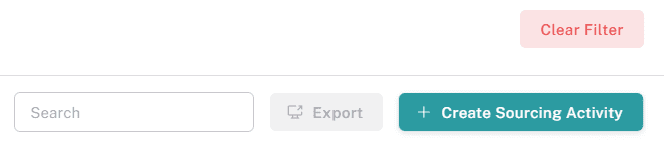
Click Export
Click Export above the Sourcing Activities table. A file called sourcing.csv downloads to your device.
Filter in your spreadsheet
Open the file in Excel or Google Sheets and filter or sort it there if you only need some activities.
What the export contains
Included | Not included |
ID, Activity Title, Status, Opening Date, Closing Date, Category, Sub Category, Location, Department, Sourcing Type, Currency, Awarded Supplier, Created By, and your sourcing custom fields | Supplier responses, questionnaire answers, pricing submissions, scores and documents |
To download pricing, use Export on the Product Analysis or Supplier Analysis tables on an activity's Financials tab. To download questionnaire answers, use Export on its Questionnaires tab. See View Supplier Responses to a Sourcing Activity.
What happens next
The file is a snapshot: it reflects the activities as they were when you loaded the page. It doesn't update.
Nothing changes in oboloo: exporting doesn't change any activity or notify anyone.
Troubleshooting
My export has more activities than my filtered table
That's expected. The export ignores filters and search. Filter the CSV in your spreadsheet instead.
Columns I added with Edit Columns aren't in the file
The export always uses the same columns. Edit Columns only changes what you see on screen.
A new activity is missing from the file
The export uses the data loaded when you opened the page. Refresh Sourcing > eSourcing and export again.
Related articles
If you need further assistance, please contact your internal platform administrator for support. Otherwise please reach out to oboloo's support team. If you are unable to view the above area in the oboloo platform, please check your user permissions and access rights.