
Supplier onboarding brings your compliance checks and supplier evaluations into a single tracked process, so you can see exactly where each new supplier has got to before you start trading with them.
Rather than requesting documents and scorecards ad hoc and trying to remember what is outstanding, onboarding groups them against the supplier, tracks progress automatically, and moves the supplier through a set of statuses until everything has been received, approved and scored.
Both new and existing suppliers can be put through onboarding. If you onboard the same types of supplier regularly, set up Onboarding Packages first — they bundle the document and scorecard requests you always send, so you are not rebuilding the same list each time.
When to Use This Feature
When onboarding a new supplier and verifying their compliance documentation.
When onboarding an existing supplier whose compliance documentation has not yet been verified.
When scoring supplier risk, sustainability, or performance as part of taking them on.
When maintaining consistent onboarding standards across departments.
Before You Start
Check the supplier's primary contact. Document and scorecard requests are sent to the supplier's contacts, and the primary contact is the one oboloo uses by default. If it is wrong, requests go to the wrong person. See Primary Supplier Contacts.
Check your document types and scorecards exist. You can only request document types and scorecards that have already been set up. Creating them mid-flow interrupts the process.
Consider building a package. If this is a supplier type you onboard often, an onboarding package will save repeating the setup every time.
Onboarding Statuses
Every supplier in onboarding carries a status showing where they have reached. The status updates automatically as requests are sent, returned and reviewed.
Status | What it means |
|---|---|
Not Started | The supplier has been flagged for onboarding, but no document or scorecard requests have been sent yet. |
In Progress | At least one request has been sent. Some items may still be outstanding or incomplete. |
To Review | The supplier has submitted everything. It is now with your team for approval and scoring. |
Completed | All documents are approved and all scorecards scored. Onboarding is finished. |
Step-by-Step Guide
Step 1: Add a Supplier to Onboarding
Go to either the Supplier Management home page or Supplier Onboarding from the main menu.
Click + Onboard A Supplier.
Choose whether you are onboarding a brand new supplier, or one that already exists in your platform.
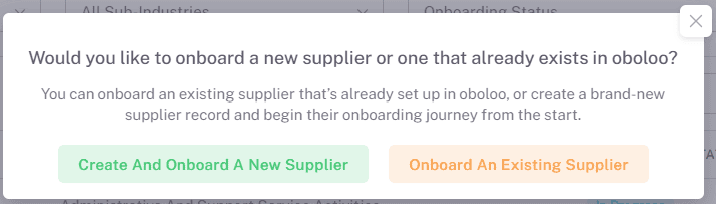
Creating and onboarding a new supplier
Fill out the required fields to create the supplier.
Turn on the Does this supplier need to go through onboarding? toggle.
Click Save. The supplier now appears in the Supplier Onboarding dashboard.
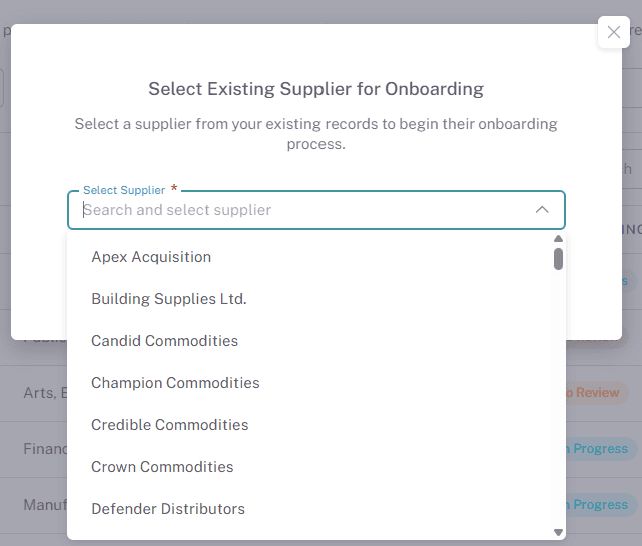
Onboarding a supplier that already exists
Select the supplier from the dropdown.
Click the green Onboard Supplier button.
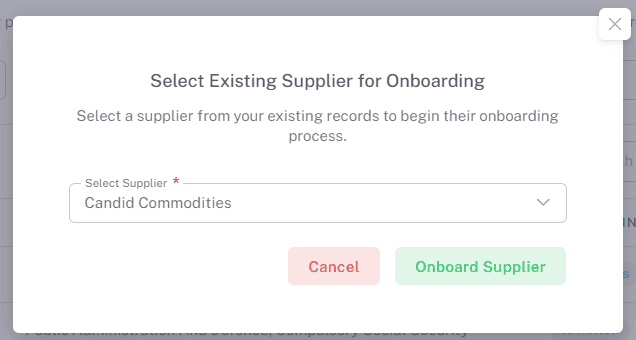
The supplier now appears in the Supplier Onboarding dashboard.
Step 2: Navigate the Onboarding Dashboard
The dashboard is the single view of every supplier currently being onboarded.
Filter by industry, status, or supplier name to find what you need.
See each supplier's onboarding owner, their progress, and their overall status at a glance.
Click a supplier name, or choose View from the actions menu, to open their detail page.
Step 3: Request Documents and Scorecards
From the supplier's onboarding detail page, use the tabs to send and track requests.
Documents tab
Request specific document types, such as policies and certifications.
Upload documents yourself on behalf of the supplier, if you already hold them.
Send a document directly to the supplier — for example an NDA for them to sign and return.
Review and approve what the supplier submits.
Scorecards tab
Send scorecards from the scorecard library — General, Risk, Sustainability and so on — for the supplier to complete.
Track which have been submitted and which have been scored.
All requests remain visible under the supplier's onboarding record.
You can also remove a supplier from onboarding altogether. Any outstanding requests are cancelled and the supplier is notified. Anything they have already submitted remains, and stays available on their supplier profile page.
Step 4: Review and Approve Submissions
When the supplier submits, the Onboarding Owner and any Supplier Owners are notified.
Open the relevant tab — Documents or Scorecards.
Approve or reject each document. If you reject one, a fresh request must be sent with an explanation, so include the reason.
Score each scorecard from 0 to 5. On Risk scorecards the scale is inverted: 0 = Low Risk, 5 = High Risk.
Add comments where useful, and save.
Step 5: Monitor Progress
Return to the Overview tab.
Completion percentages for documents and scorecards update in real time.
Progress bars show how much has been approved and scored.
The status moves to Completed automatically once everything is fulfilled.
Who Is Involved
Two internal roles matter during onboarding, and they are not the same thing.
The Onboarding Owner is the internal user responsible for running a particular supplier's onboarding. They are notified whenever the supplier uploads a document or submits a scorecard. Assign or change them from the dropdown at the top of the supplier's onboarding detail page.
Supplier Owners are responsible for the supplier record itself, over its whole life rather than just onboarding. They also receive onboarding notifications. Assign them from the Supplier Owners tab within the main supplier record, and add more than one where you want visibility across teams. See Supplier Owners.
Both are internal users. The primary supplier contact is different again — that is the person at the supplier who receives the requests.
Where Onboarding Records Appear Elsewhere
Onboarding does not sit in isolation from the rest of the supplier record.
Suppliers flagged for onboarding appear on the Supplier Management home page table under the Onboarding Status column.
Documents and scorecards requested through onboarding are also accessible in the supplier's main record, under the Documents and Scorecards tabs.
Anything linked to onboarding shows Yes in the Onboarding Record column of those tables, so you can tell it apart from documents requested ad hoc.
Key Considerations & Best Practices
✅ Confirm the primary contact first — Requests go to the supplier's contacts, so an out-of-date primary contact means an onboarding that quietly stalls.
✅ Use packages for repeat supplier types — Building the same list of requests by hand each time is where most of the effort goes.
✅ Enable onboarding where compliance review matters — Not every supplier needs it, but any supplier carrying regulatory or reputational risk does.
✅ Explain rejections — A rejected document needs a fresh request, so tell the supplier what was wrong rather than making them guess.
✅ Monitor progress regularly — Suppliers stalled at In Progress usually need chasing, not more requests.
✅ Use comments and scores — They build the evaluation history you will want at the first supplier review.
✅ Finish what you start — Onboarding only reaches Completed once every document is approved and every scorecard scored. Suppliers left at To Review look non-compliant when they are simply waiting on you.
Additional Resources
📌 Related User Guides:
Supplier Onboarding Packages – Bundling document and scorecard requests for reuse.
Primary Supplier Contacts – Setting who at the supplier receives requests.
Adding A New Supplier – Creating supplier records and enabling onboarding.
Adding and Requesting Supplier Documents – Requesting, uploading and approving supplier files.
Evaluating Suppliers with Supplier Self-Assessment Scorecards – Sending scorecards to suppliers.
Supplier Scorecard Calculations – How scorecard scores are worked out.
Supplier Owners – Assigning responsibility for a supplier record.
Using the Supplier Compliance Report – Reporting across your supply base.
If you need further assistance, please contact your internal platform administrator for support. Otherwise please reach out to oboloo's support team. If you are unable to view the above area in the oboloo platform, please check your user permissions and access rights.