
The Active Sessions feature gives users full visibility over devices and browsers currently signed into their oboloo account, helping improve account security and identify suspicious activity quickly.
Users can now review recent sessions, identify unfamiliar devices, and instantly sign out of all active sessions directly from their profile page.
When to Use This Feature
If you want to review which devices are currently accessing your account.
If you believe your account may have been accessed by someone else.
If you want to sign out of all active sessions for security reasons.
If you receive a new device sign-in notification that you do not recognize.
Step-by-Step Guide
1. Open Your User Profile
Click your profile icon in the top-right corner of oboloo.
Open your user profile page.
2. Navigate to the Security Section
Scroll to the Security section underneath the Change Password area.
Here you will see your most recent active sessions and devices.
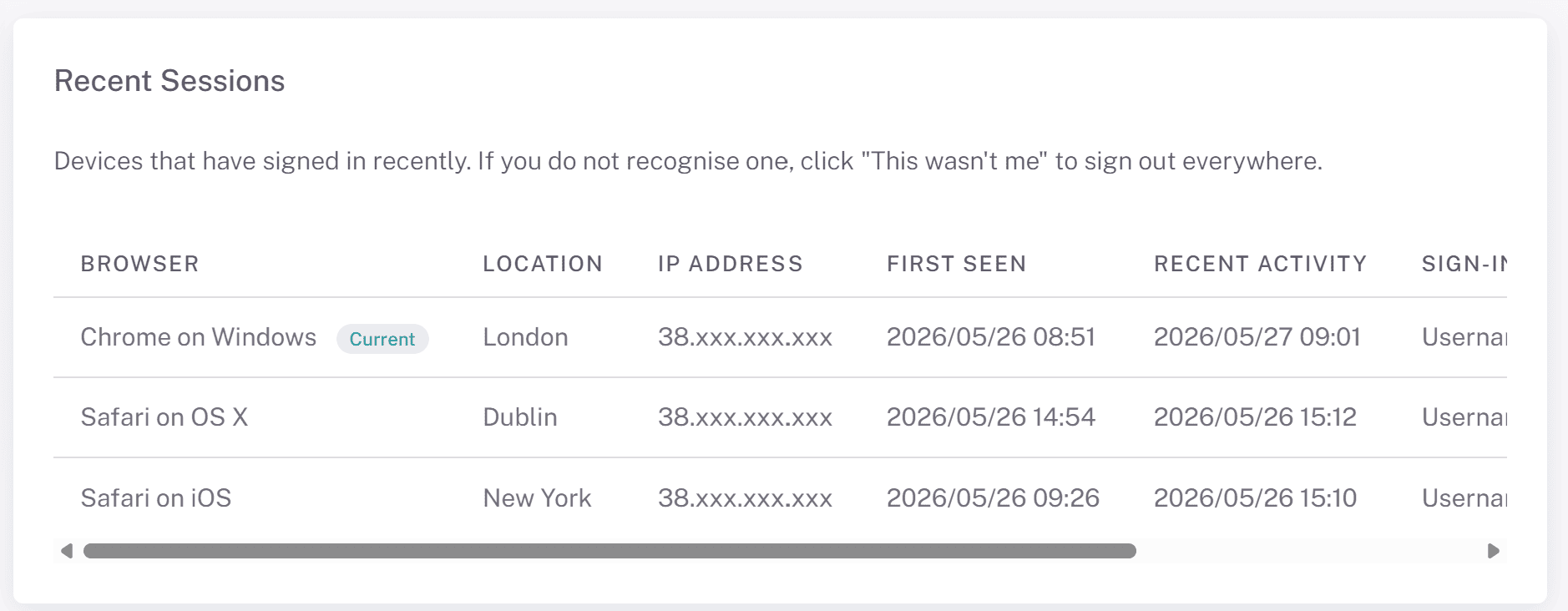
3. Review Your Active Sessions
The Active Sessions table displays:
Browser and device used
Approximate location
IP address
First seen date
Recent activity
Sign-in method used - Either 'Username & Password' or 'Single Sign-On (Via Microsoft)
This helps users quickly identify unfamiliar or suspicious account activity.
4. Identify Suspicious Activity
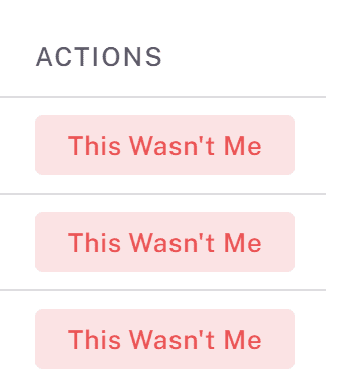
If you see a device or session you do not recognize, click the red “This wasn’t me” button next to the session.
A security confirmation modal will appear explaining the next steps.
5. Sign Out of All Sessions
Click “Sign out all sessions” to immediately terminate all active sessions associated with your account.
You will then be required to sign back into oboloo again.
We strongly recommend changing your password immediately afterwards.
New Device Sign-In Notifications
Whenever a new device or browser signs into your oboloo account, you will automatically receive an email notification.
The notification includes:
Browser used
Approximate location
Sign-in method
First seen date and time
This helps users quickly identify unauthorized access attempts and improve account security visibility.
Key Considerations & Best Practices
✅ The Location shown in the sessions table is approximate and based on IP address data.
✅ If you do not recognize a session, immediately sign out all sessions and reset your password.
✅ If your organization uses Microsoft Single Sign-On (SSO), you may also need to reset your Microsoft password separately.
✅ API keys can also provide account access. If you notice suspicious activity, review your API keys under Settings > API Authentication and delete API keys where needed.
✅ Password changes automatically sign users out of all active sessions for enhanced security.
Additional Resources
📌 Related User Guides:
If you need further assistance, please contact your internal platform administrator for support. Otherwise please reach out to oboloo's support team