
Congratulations on deciding to upgrade your oboloo experience! This guide will walk you through the process of upgrading to a plus plan. Follow these simple steps to choose the best plan for your organization.
Upgrading your oboloo subscription to a Plus plan
You can upgrade to a monthly or annual plan at any time. Here’s how:
1. Access Account Management: Expand the "Settings" menu on the left-hand main menu and select "Account Management."

2. Initiate the Upgrade: Click on the "Upgrade" button located either under "Account Management" or at the top of the page.
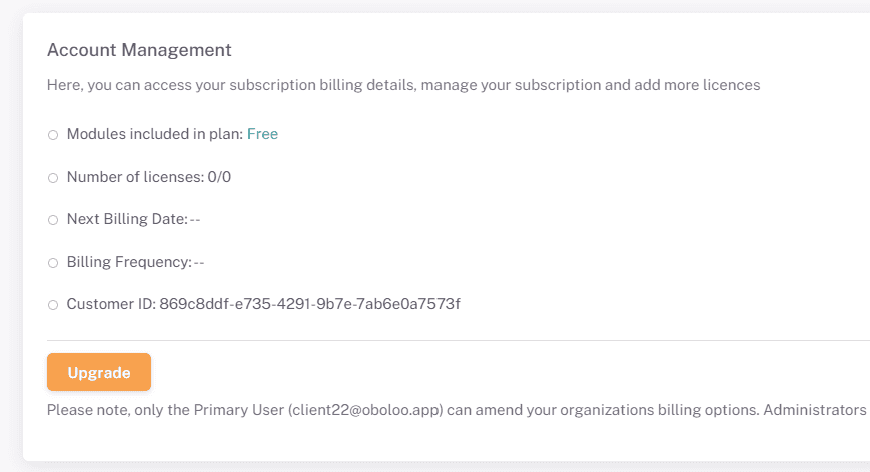
3. Choose Your Plan: You will be redirected to oboloo's upgrade page where you will see our available Plus plans your organization can upgrade to. Select either the monthly or annual plan. Note that choosing the annual plan will save you 17% per year.
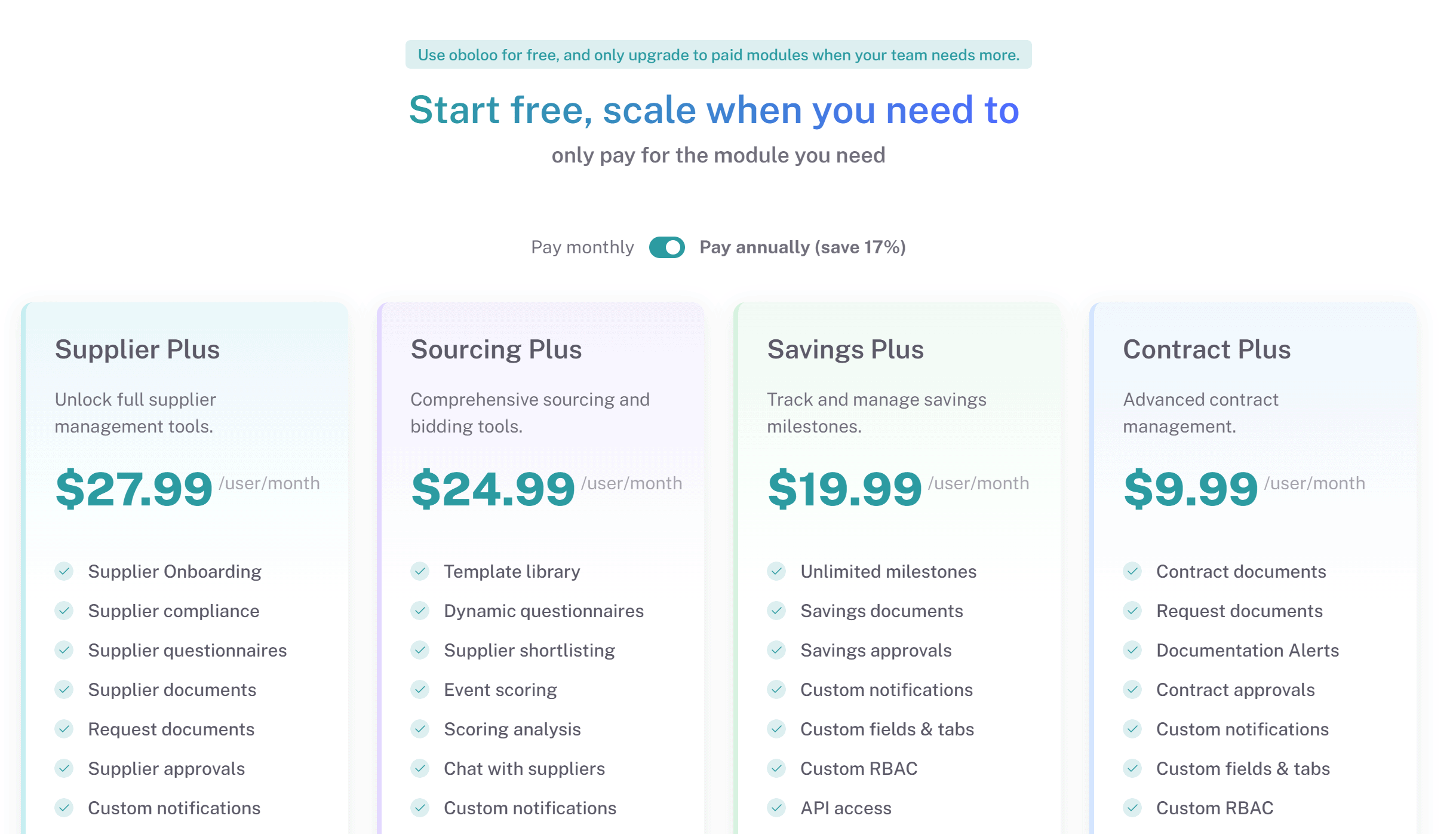
4. Selecting your plans/modules: Select which modules you would like to include in your paid subscription by clicking the '+ Add To Subscription' button one each of the module cards. You may choose just one plan, or multiple. As your begin to select each module, they will appear on the right-hand side of the page in a new panel.
Within this panel, you can adjust the number of licenses you will need for your subscription.
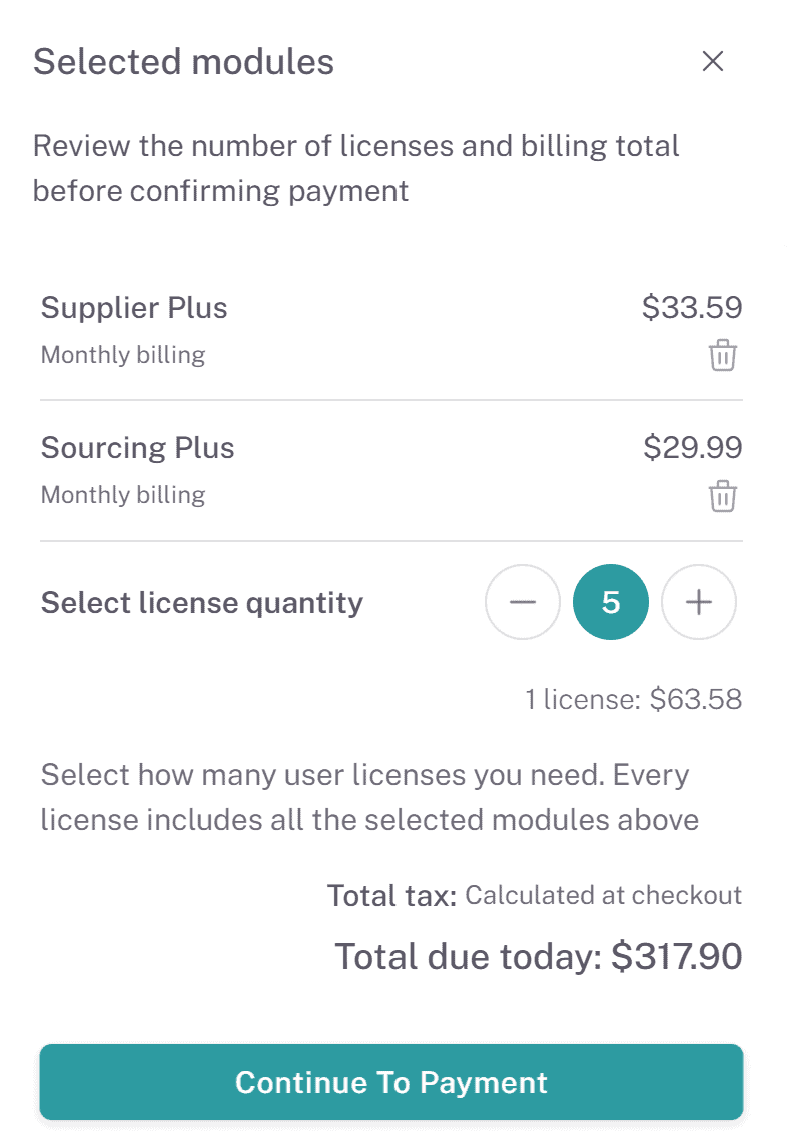
Once you have selected the modules you would like to include in your oboloo subscription, click the 'Continue To Payment' button, shown in the screenshot above.
5. Stripe Checkout: You will be redirected to our secure checkout page, hosted by Stripe. Within here, you can checkout using a debit/credit card. You can also apply a promotion discount code if one has been provided to you.
Once you have completed the checkout, you will be redirected back to your oboloo platform and a confirmation message will be displayed. You will receive confirmation of your purchase and a receipt from Stripe to your email address.
6. Assign Licenses To Users: Once you have upgraded, you will need to assign users licences to access oboloo, including those who were using oboloo on the free forever plan if you wish for them to continue accessing oboloo. By default, the primary user who upgraded to the paid plan is already assigned a license.
To assign a license to a user, go to the users profile (Settings > Users) and navigate to the 'License & Plans' tab. Click the green 'Assign License' button.
Important Points to Remember
Plan Selection: Carefully choose between the monthly and annual plans based on your organization's needs. Remember, the annual plan offers a 17% saving.
User Quantity: Ensure you select the correct number of users required for your organization during checkout. You can increase the license quantity later on if needed.
Secure Payment: All transactions are securely processed by Stripe
Support: If you opt to pay by invoice, a member of the oboloo support team will contact you to assist with the payment process.
Support
Help Center: Access the Help Center from the menu for articles and FAQs.
Customer Support: If you need further assistance contact our support team via the chat widget on the bottom right corner of the screen.
If you need further assistance, please contact your internal platform administrator for support. Otherwise please reach out to oboloo's support team. If you are unable to view the above area in the oboloo platform, please check your user permissions and access rights.