
As your organization grows, you may need to add more licenses to your oboloo account. This guide will walk you through the process of managing your subscription and adding more licenses using our Stripe customer portal.
Find out how to assign one of your organizations oboloo licenses to a new user here
Adding or removing Licenses To Your oboloo Subscription
To add or remove licenses , follow these steps:
1. Access Account Management: Go to the "Settings" menu on the left-hand main menu and select "Account Management."

2. Manage Subscription: Click on the "Manage subscription" button. You will be redirected to the customer portal hosted by Stripe.
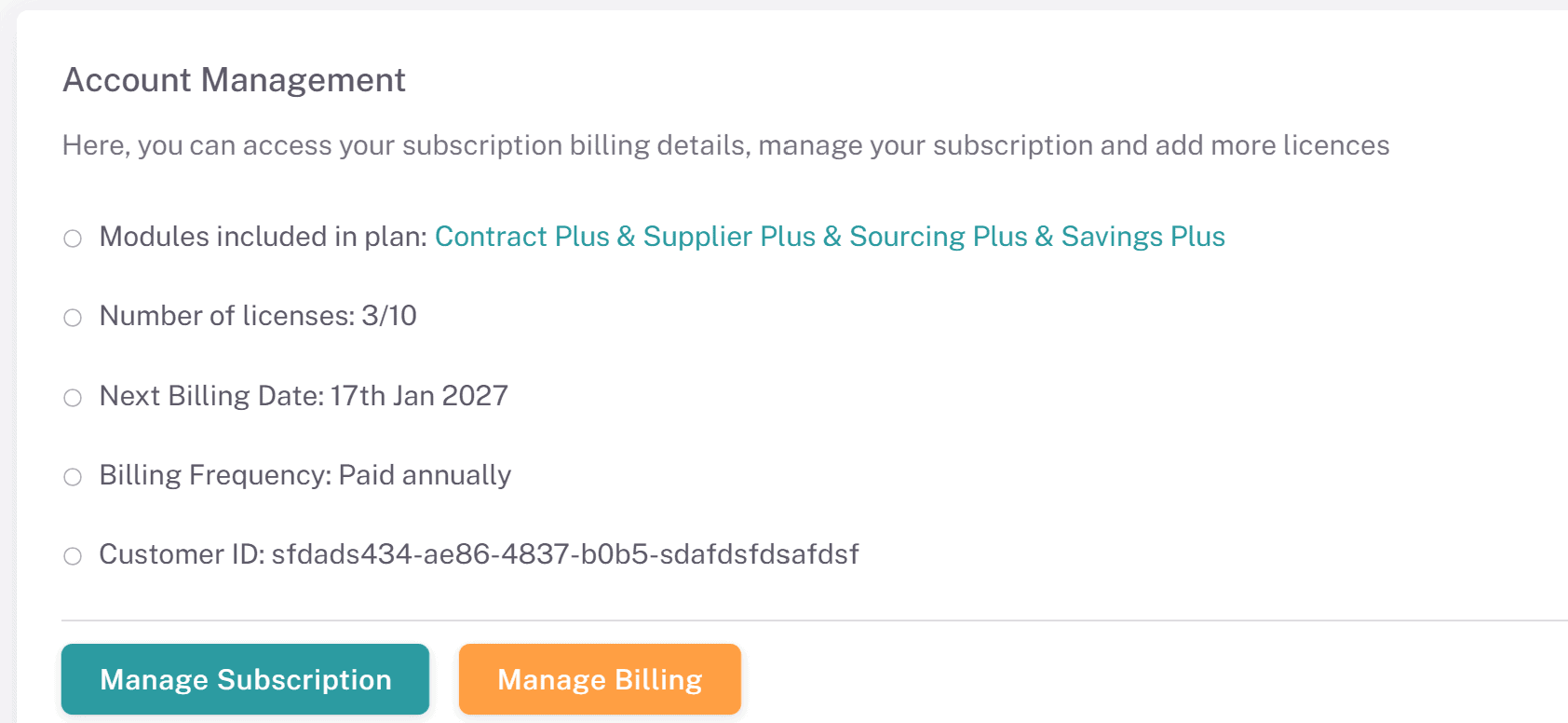
3. Upgrade Page: After clicking the Manage Subscription button, you will be redirected to the upgrade page where you can amend your organizations plan and license quantities.
Updating license quantities
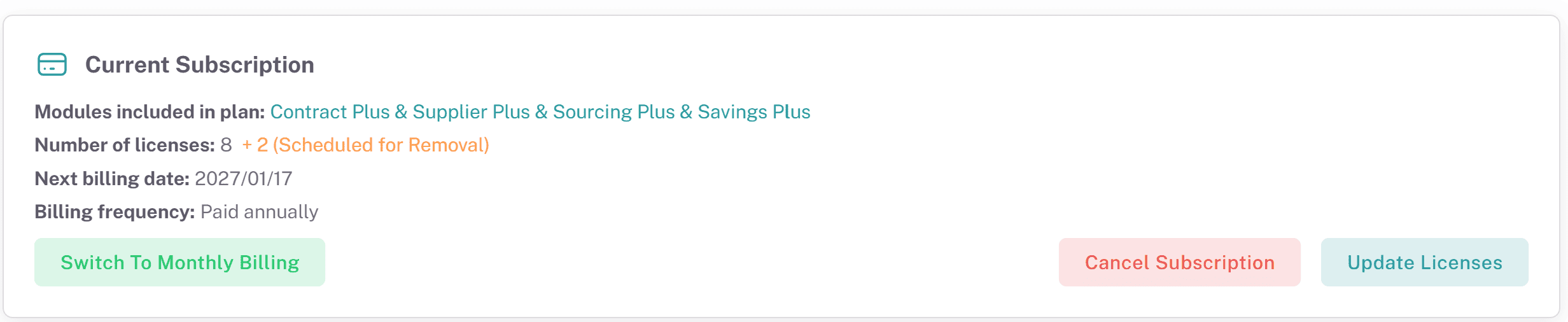
Scroll down to the Current Subscription card on the upgrade page

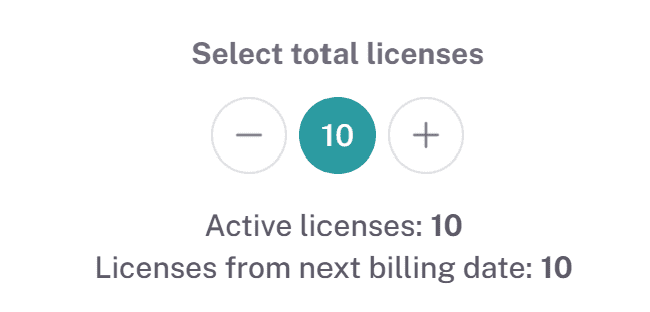
Click on the Update Licenses button and the Update licenses popup will appear
on this popup, you can click the minus (decrease licenses) or plus (increase licenses) to amend your license count for your current and future subscription
Prorated Billing
At oboloo, we use prorated billing to ensure you only pay for the exact amount of time you use additional licenses. This means that if you add licenses partway through your billing cycle, you'll only be charged for the remaining period. For example, if your annual license costs $995.88 and you add a license halfway through the year, you will be billed approximately $497.94 for that license. This prorated amount reflects the cost for the remaining six months of the annual billing period. This ensures fair and transparent billing, so you only pay for what you use.
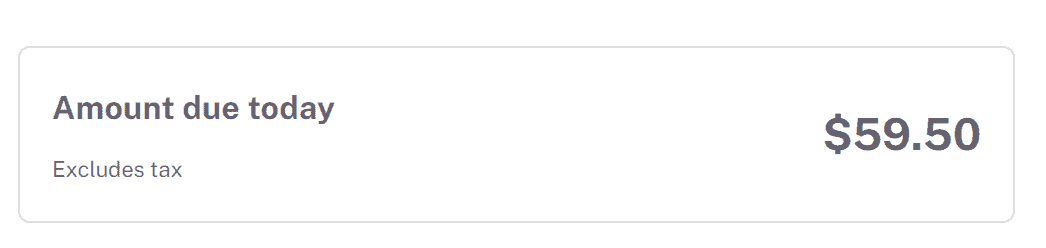
When increasing the quantity of licenses against your subscription, you will be shown the prorated amount (Amount Due Today) on the Update Licenses popup.
Payment Method
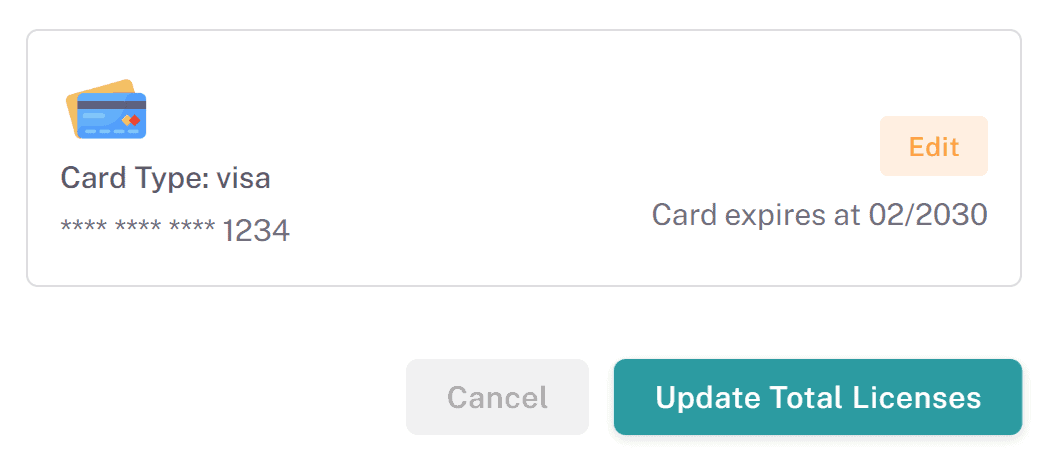
When increasing the quantity of licenses, your organizations default payment method will be automatically charged. This payment method is shown at the bottom of the update licenses popup. Please ensure you have your organizations or the card holders permission to charge the payment method on file. oboloo takes no responsibility if an employee uses their organizations saved default payment without prior authorization.
Find out how to change your organizations default payment method here.
Important Notes
Immediate Billing: Additional licenses are billed immediately.
License Availability: New licenses are available immediately after purchase. Removed licenses remain until the next billing cycle.
If you decrease the quantity of licenses under your subscription, you will see these clearly marked under the current subscription and the next renewal cards on the upgrade page. Amber text under the Current Subscription card shows the quantity of licenses being removed on the next billing date. These licenses are still available to use until the next billing date.
The Next Renewal card on the upgrade page shows the quantity of licenses and the renewal amount on your next billing date

Support
Help Center: Access the Help Center from the menu for articles and FAQs.
Customer Support: If you need further assistance or need to change the primary user on the account, contact our support team via the chat widget on the bottom right corner of the screen.
Managing your licenses in oboloo is designed to be straightforward and flexible. Whether adding or removing licenses, the process ensures your organization has the right number of users at all times. If you have any questions or need assistance, our support team is here to help.
If you need further assistance, please contact your internal platform administrator for support. Otherwise please reach out to oboloo's support team. If you are unable to view the above area in the oboloo platform, please check your user permissions and access rights.