
If you see a Tenant Not Found error when you sign in to oboloo or the oboloo supplier portal, your browser is holding on to old oboloo site data. This usually happens because of a browser setting your organisation manages, not anything you've done. You can fix it in a minute by clearing oboloo's site data.
Which browser are you using?
Microsoft Edge: go to Clear oboloo site data in Microsoft Edge
Google Chrome: go to Clear oboloo site data in Google Chrome
Need to get in right now? go to Quick fix: use a private window
Clear oboloo site data in Microsoft Edge
Open the oboloo site data page
Open a new tab in Edge, then copy and paste this into the address bar and press Enter:
edge://settings/content/all?parent=cookies&searchSubpage=oboloo.app
Delete oboloo's site data
You'll see oboloo.app in the table.

Click the 'Delete displayed data' button to delete its saved data. If Edge asks you to confirm, click Delete.

Sign in again
Close the tab, go back to oboloo and sign in as normal.
Clear oboloo site data in Google Chrome
Open the oboloo site data page
Open a new tab in Chrome, then copy and paste this into the address bar and press Enter:
chrome://settings/content/all?searchSubpage=oboloo.app
Delete oboloo's site data
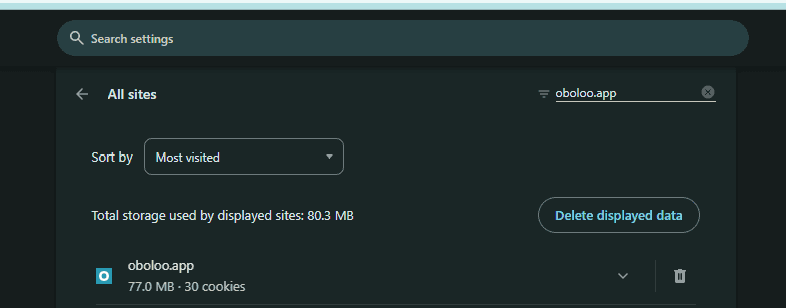
You'll see oboloo.app in the list. Click the bin icon on its row, then click Delete to confirm.
Sign in again
Close the tab, go back to oboloo and sign in as normal.
Quick fix: use a private window
A private window doesn't use your saved site data, so you can sign in straight away.
Open a private window
Click the three dots in the top-right corner of your browser, then:
Edge: click New InPrivate window
Chrome: click New Incognito window
Sign in to oboloo
Open your oboloo sign-in link in the private window and sign in as normal.
Troubleshooting
I can't see oboloo.app in the table
Check you pasted the whole address, including the part after the question mark. If it's still empty, use the private window fix above, then contact oboloo support so we can help.
The error came back
This can happen until our permanent fix is released. Clear the site data again using the steps for your browser.
If you need further assistance, please contact your internal platform administrator for support. Otherwise please reach out to oboloo's support team. If you are unable to view the above area in the oboloo platform, please check your user permissions and access rights.